

 Updated October 2026
 In short
- Owners: sign in, search your business name on Google and open the reviews in your profile's management tools.
- On a phone, use the Google Maps app; for many locations, start from Business Profile Manager.
- Reviews you've written: in Google Maps, open your profile or 'Your contributions', then Reviews.
- Anyone can read all of a business's reviews by selecting the review count next to its star rating.
Where are my Google reviews? The quick answer
Start with the correct Google Account and a clear view of which business or location is involved. Platform interfaces can change, so use Google’s current Help instructions for sensitive account, policy or verification decisions.
| You are… | Where to look | What you can do there |
|---|---|---|
| A business owner on a computer | Google Search: sign in and search your business name | Read, sort and reply to reviews |
| A business owner on a phone | The Google Maps app, or Google Search in your phone's browser | Read and reply, and get alerts |
| Managing many locations or clients | Business Profile Manager at business.google.com | Pick a location and open its reviews |
| Someone who has written reviews | Google Maps: your profile or 'Your contributions', then Reviews | Read, edit or delete your reviews |
| Anyone checking a business | The review count next to the business's star rating | Read, sort and filter every review |
Google renamed Google My Business to Google Business Profile and retired the separate Google My Business app in 2022, so older instructions that mention the app or a 'Reviews' tab in a dashboard no longer apply. Everything below uses Google Search, Google Maps and Business Profile Manager.
How to check my Google reviews as a business owner
On a computer, Google Search is the quickest route. Owners and managers see management tools for their profile directly in the search results.
Sign in to the right account
Use the Google account that is an owner or manager of your Business Profile.
Search for your business
Type your business name into Google, or search for 'my business' to list the profiles you manage.
Open your reviews
In the management tools shown with your listing, select the reviews option (often labelled 'Read reviews').
Sort and filter
Sort by newest to see recent reviews first, and use the filter for reviews you haven't replied to yet where Google shows one.
Reply where needed
Type a reply under any review and post it. Your reply is public and shown as a response from the owner.
Replying matters as much as reading. Our guide on how to respond to Google reviews has examples for good, mixed and negative reviews.
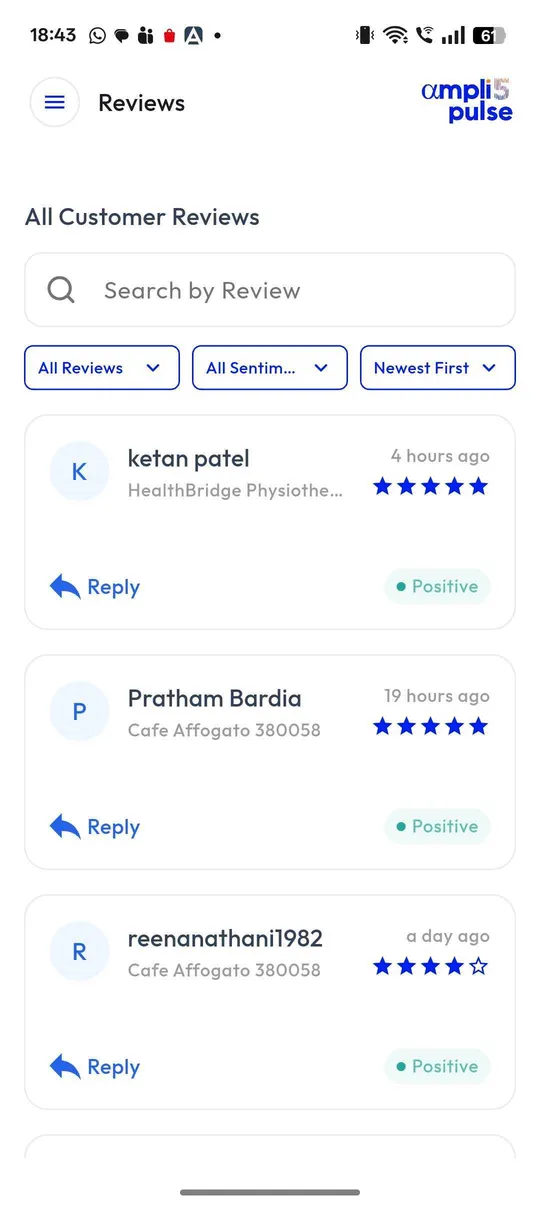
How to see your Google reviews on your phone
In the Google Maps app
Open the Google Maps app while signed in with your owner or manager account. Tap your profile picture and choose your Business Profile from the menu (Google labels it along the lines of 'Your Business Profile'). Then open the reviews section to read reviews and reply.
In Google Search on your phone
Open the Google app or your phone's browser, sign in and search for your business name. The same management tools appear as on a computer, including your reviews and the option to reply.
Get notified about new reviews
Rather than checking every day, switch on review notifications. Google can tell you by email or with a phone notification when a new review arrives; look in your Business Profile's notification settings and in the Google Maps app's settings. Google moves these options occasionally, so search the settings for 'notifications' if you can't see them.
How to see all my Google reviews across several locations
For a network of branches, record the responsible person, the approved information and the completion status for each location. This makes it easier to spot omissions without assuming that one change applies everywhere.
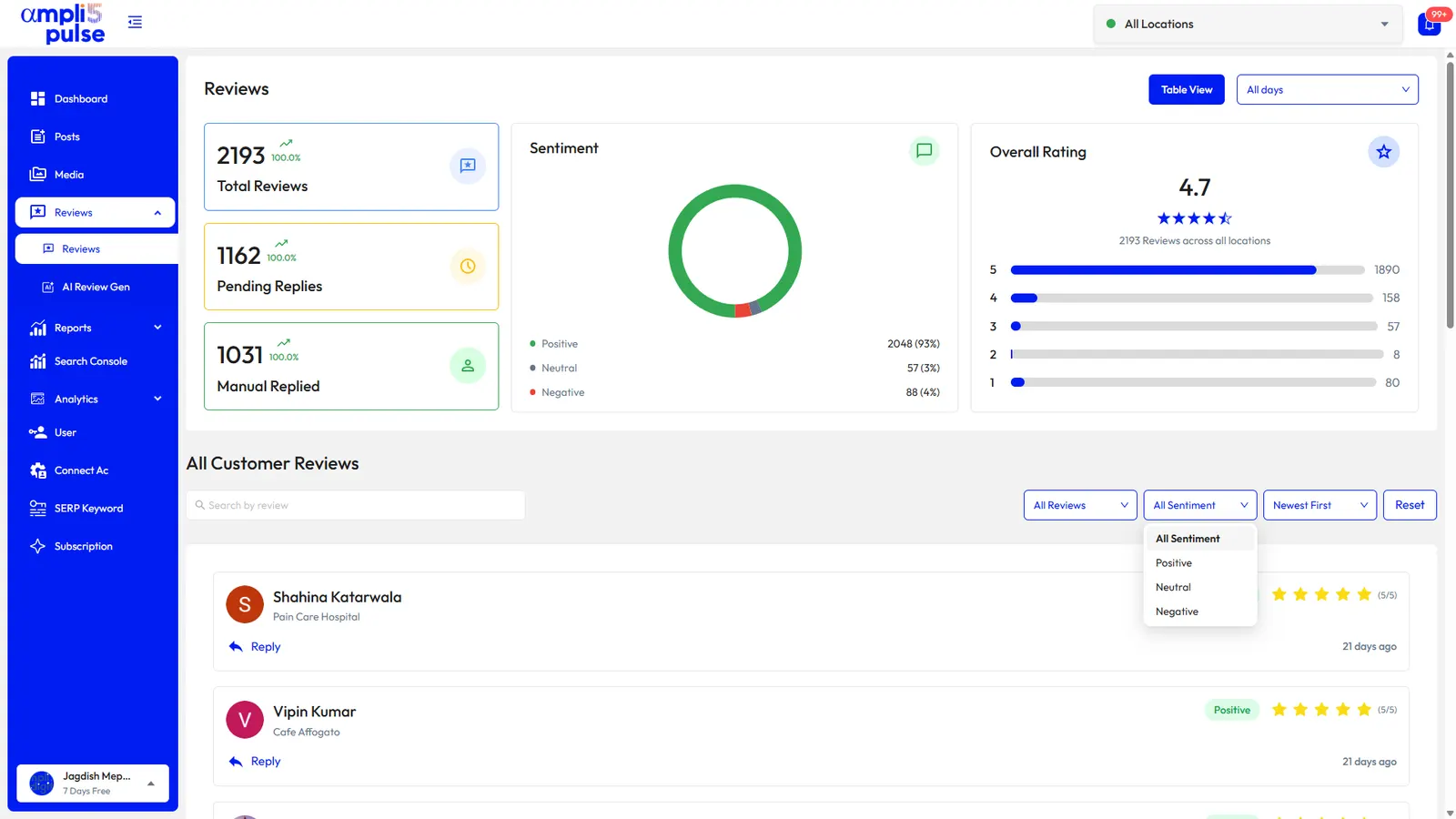
Agencies and franchise head offices usually need more than that: one place to see which locations have new or unanswered reviews, how ratings compare and which branch needs attention today. That's the job of Google reviews management software.
Where can I see my reviews on Google that I've written?
If you've reviewed restaurants, shops, hotels or anywhere else, all of those reviews are kept on your Google Maps profile. You'll only see them when you're signed in to the same Google account you used to write them, which is the most common reason people can't find their own reviews.
On a phone (Google Maps app)
Open Google Maps
Make sure you're signed in to the account you wrote the reviews with.
Open your profile
Tap your profile picture, then 'Your profile'. In some versions of the app this is called 'Your contributions'.
Go to Reviews
Select the Reviews tab to see every review you've written, newest first.
Edit or delete
Tap the three-dot menu on a review to edit or delete it.
On a computer
Open Google Maps in your browser, open the menu (the three lines in the top corner), choose 'Your contributions' and then Reviews. This is also where you can find your reviews on Google if you want to check what you wrote about a place before visiting again. Your profile may also show how many times your contributions have been viewed.
Writing reviews earns points in Google's Local Guides programme. If you're new to reviewing, see how to leave a Google review.
How to see all reviews on Google for any business
Google shows a few highlighted reviews first, chosen by its own idea of relevance. To see every review a business has:
Find the business
Search for the business on Google or open it in Google Maps.
Open the full list
Select the review count next to the star rating, or the Reviews tab in Google Maps.
Change the sort order
Switch from 'Most relevant' to 'Newest', 'Highest' or 'Lowest', depending on what you want to check.
Filter by topic
Use the topic buttons or the search option, where Google shows them, to find reviews that mention something specific, such as parking or a particular dish.
'Most relevant' is Google's default, and it isn't the same as newest. If you want to know whether a business has improved recently, sort by newest. If you own a business, reading the lowest-rated reviews of competitors near you is a quick way to learn what customers in your area care about, and what you can do better.
Why you can't see some of your Google reviews
Owners often hear about a review a customer says they left but that isn't showing, or notice the review count drop. The usual reasons are:
- The review is still being checked. New reviews can take a while to appear publicly.
- Google's systems removed or held it. Automated filters take down reviews that look like spam or break Google's policies, and genuine reviews are sometimes caught too.
- The reviewer used another account. Reviewers only see their own review when signed in to the account they wrote it with.
- It's on a duplicate profile. Reviews belong to a place, so a duplicate listing for your business may be holding some of them.
- The reviewer deleted it or closed their Google account.
- The profile has a problem. If a profile is suspended, its reviews may not show until it's reinstated.
- Search and Maps are out of step. Review counts can differ between them for a short time.
Sources: Google Business Profile Help: Manage customer reviews; Google Maps Help: Add, edit, or delete Google Maps reviews & ratings; Google Business Profile Help: About missing or delayed reviews.