

 Updated October 2026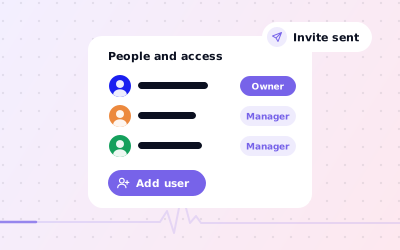
 In short
- Every profile has one primary owner, and can have other owners and managers; the old site manager role is now simply Manager.
- Only owners can add or remove people; managers can edit the profile, reply to reviews and post.
- The person must accept the email invitation, and new users wait 7 days before some actions, such as becoming primary owner.
- Give staff and agencies Manager access and keep ownership with people inside your business.
Owner, manager and primary owner: who can do what
Start with the correct Google Account and a clear view of which business orlocation is involved. Platform interfaces canchange, so use Google’s current Help instructions for sensitive account, policy or verification decisions.
| Task | Primary owner | Owner | Manager |
|---|---|---|---|
| Edit business information | Yes | Yes | Yes |
| Reply to reviews | Yes | Yes | Yes |
| Create and manage posts | Yes | Yes | Yes |
| Add and edit photos, logo and products | Yes | Yes | Yes |
| Download performance insights | Yes | Yes | Yes |
| Add or remove owners and managers | Yes | Yes | No |
| Change other users' roles | Yes | Yes | No |
| Remove the profile | Yes | Yes | No |
| Transfer primary ownership | Yes | No | No |
There's no view-only role. If someone only needs to see results, sending them a regular report is safer than giving them editing rights.
How to add users to Google Business Profile, step by step
You need to be an owner to add people. These steps follow Google's current instructions for business.google.com. If you manage your profile from Google Search, open the profile's More menu to reach the same settings.
Open your profile
Go to business.google.com, or search for your business on Google while signed in to an owner account.
Open the More menu
Select More, shown as three dots on some screens.
Choose Business Profile settings
This opens the profile's settings.
Select People and access
You'll see everyone who has access and their role.
Select Add
It's at the top left of the list.
Enter their email address
Use the email of their Google Account. It doesn't have to be a Gmail address.
Choose their access
Under Access, select Owner or Manager.
Select Invite
Google emails the invitation. The person shows as invited until they accept.
What happens after you send the invite
- The person receives an email and must accept it before they get any access.
- Until then, they're listed as invited in People and access.
- New owners and managers must wait 7 days before they can do certain things, such as removing other users, deleting the profile or becoming primary owner.
- If a new user leaves the profile within those 7 days, they have to be invited again.
- Google Groups can't be added as owners or managers, so invite individual Google Accounts.
If the person doesn't have a Google Account, they can create one with their existing work email address and then accept the invitation from that account. If the invitation doesn't arrive, check the address you typed and ask them to look in their spam folder.
How to give an agency access
Add your agency as a Manager. That's enough for them to update your information, publish posts, upload photos and reply to reviews, without being able to remove the profile or other users. Never give an agency your Google password: shared logins can't be revoked cleanly, and they make it hard to see who changed what.
- Invite a named person or the agency's own management account, not a shared inbox
- Use Manager unless there's a clear reason for Owner
- Keep at least one owner inside your business, ideally two
- Note the date you added them, so you can review access when the contract ends
- If an agency created your profile, ask them to make you an owner and transfer primary ownership to you
Agencies that manage many clients can use agency organisation features in Business Profile Manager, but the client should still be the owner. If an agency already holds ownership, our guide to transferring ownership explains how to get it back.
How to remove a user or change their role
Open People and access
Go to More, then Business Profile settings, then People and access.
Select the person
If you can't select anyone, your account probably has Manager access.
Remove or change access
Select Remove person to take away their access, or edit their access to switch between Owner and Manager.
Only owners can remove other owners and managers. A primary owner can't remove themselves until they've transferred primary ownership to someone else. When an employee leaves or an agency contract ends, remove their access the same day.
Managing access for many locations
If you run several locations, adding people one profile at a time gets slow. Business Profile Manager lets you organise locations into business groups and give people access to a whole group, so a regional manager can be added once rather than to every branch.
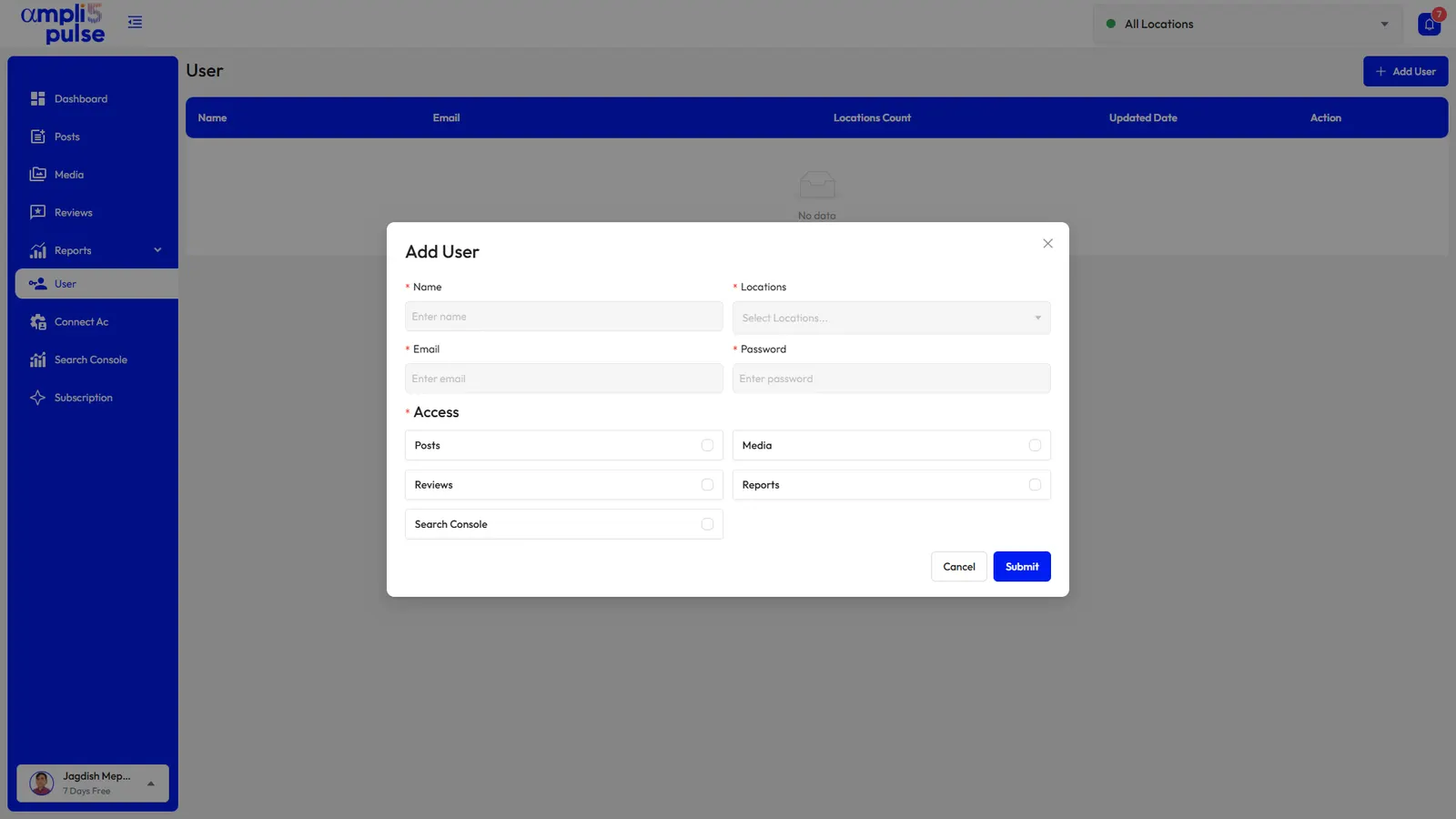
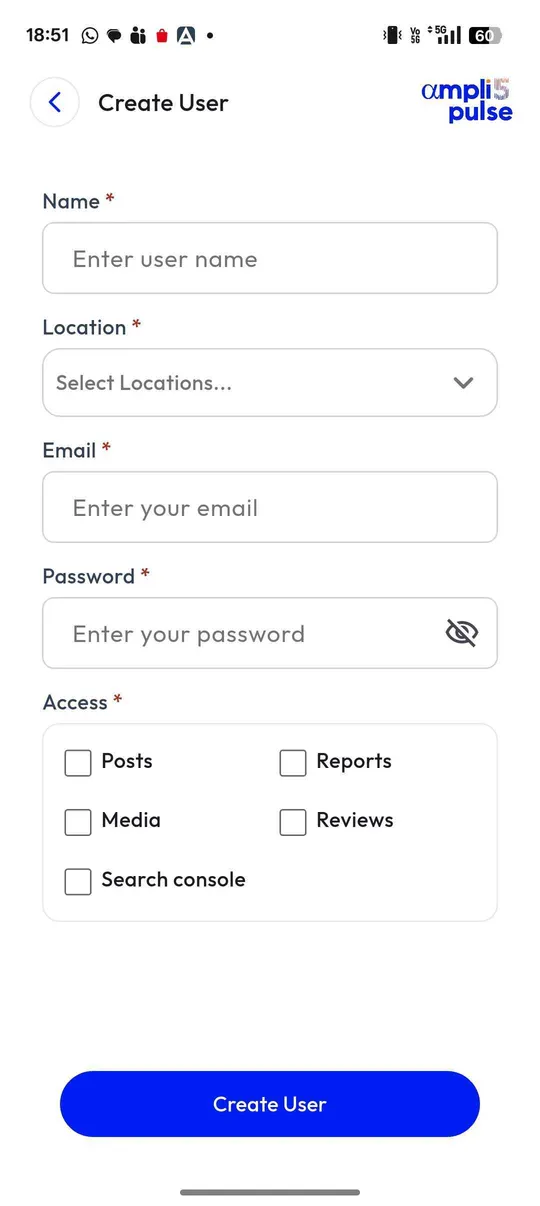
Ampli5 Pulse adds a second layer on top. You connect your profiles with a Google account that manages them, then invite colleagues into Ampli5 Pulse and choose what each person can do there. A store manager can reply to reviews for one shop, a regional lead can see their region, and head office sees everything, without everyone needing Owner rights on Google.
Good access habits
- Have at least two owners from inside the business, so one person leaving doesn't lock you out.
- Use accounts the business controls for owners, not the personal account of someone who might leave.
- Give everyone their own access instead of sharing a login.
- Review the People and access list every few months and remove anyone who no longer needs it.
- Be wary of calls claiming to be from Google that ask you to add someone or read out a code. There's no official public phone line for Business Profile, and scam calls are common.
For genuine help, our guide to Google Business Profile support explains the official routes, and our management guide covers running profiles day to day.
Sources: Google Business Profile Help: Manage your Business Profile owners & managers; Google Business Profile Help: Transfer primary ownership of a Business Profile.