

 Updated October 2026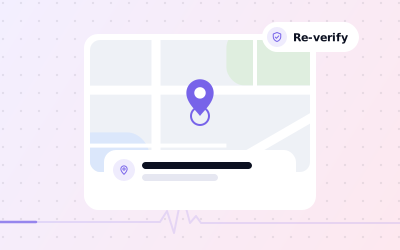
 In short
- Edit the address on your existing profile: Google advises against creating a new profile when you move.
- The path is Edit profile, then Location, then Edit next to Business location; use Adjust to move the map pin.
- Moving to new premises usually means verifying again, so have signage and proof of address ready.
- If customers don't visit you, hide the address and list up to 20 service areas instead.
How to change business address on Google, step by step
Start with the correct Google Account and a clear view of which business or location is involved. Platform interfaces can change, so use Google’s current Help instructions for sensitive account, policy or verification decisions.
Open your Business Profile
Search for your business name on Google while signed in, or go to business.google.com and choose the location.
Select Edit profile
This opens your business information.
Open the Location section
Here you'll see your business location and, if you have them, your service areas.
Edit the business location
Next to Business location, select Edit.
Enter the new address
Fill in the building or unit number, street, town or city, and postcode or PIN code exactly as they appear on official post. If Google can't find the address, re-enter the parts highlighted in red.
Check the map pin
Look at the map preview. If the pin isn't on your entrance, select Adjust, move the map until the pin sits on your building, then select Done.
Save the change
Select Save. Google reviews address changes before they go live and may ask you to verify the business again.
Google says changes usually appear within about 10 minutes but can take up to 30 days in some cases. If your edit is still pending after a few days, check your profile for a status message before you try again. Submitting the same change repeatedly doesn't speed it up.
How to update business address on Google Maps from your phone
The Google My Business app was retired in 2022, so changing a Google My Business address on a phone now happens in the Google Maps app (Android and iPhone) or by searching for your business in the Google app. Here is how to change your business address on Google Maps from your phone. In Maps, the Business tab only appears when you're signed in with an account that manages a profile.
Open Google Maps
Make sure you're signed in to the Google account that manages the business.
Tap Business
It's at the bottom right of the app.
Tap Edit profile
If you manage several businesses, pick the right one first.
Open Location
Then tap Edit next to Business location.
Update the address and pin
Enter the new address, check the pin on the map and adjust it if needed.
Tap Save
The change goes to Google for review.
Why the map pin matters
Customers who tap Directions are sent to the pin, not to the words in your address. A pin on the wrong side of a shopping centre or on a neighbour's door sends people the wrong way. After any move, request directions on a phone and check where it actually takes you.
How to add a business address to Google Maps
If your business isn't on Google Maps at all, there's no address to change: you need a Business Profile. Add your business at business.google.com or through Google Maps; our guide to creating a Google Business Profile walks through it.
If a listing for your business already exists but someone else manages it, such as a former employee or a previous agency, don't create a second one. Claim the existing profile or request access instead, so you keep its reviews and avoid a duplicate.
If you run a service-area business with a hidden address and you've now opened premises that customers visit, add the address to your existing profile:
Open Edit profile, then Location
Select Edit next to Business location.
Enter the address
Type the full address of the new premises and check the pin.
Show the address
Turn on Show business address to customers.
Save and verify
Save the change and complete any verification Google asks for.
Moving premises: keep your profile and your reviews
The most costly mistake when moving is starting a new profile for the new premises. Google's help is direct about this: don't create a new Business Profile because of a change in physical location. If you move to a new address and keep the same business name, Google says your reviews are transferred automatically. A few categories, such as hotels, golf courses and scenic attractions, are exceptions where reviews may not move.
Editing the existing profile keeps your reviews, photos and history attached to the business. A brand-new profile starts from zero, and you then have two listings competing with each other until one is removed.
| Your situation | What to do |
|---|---|
| Moving to new premises, same business name | Edit the address on your existing profile |
| Opening a second location and keeping the first | Create a separate profile for the new location |
| Closing for good, not reopening elsewhere | Mark the profile as permanently closed |
| Correcting a typo, unit number or postcode | Edit the address, then check the pin |
| Moving and rebranding at the same time | Change the address first and verify, then deal with the name |
| No longer receiving customers at your premises | Hide the address and list service areas |
| Already created a new profile by mistake | Contact Google support to move reviews and report the duplicate |
Timing your move
- Don't change the address before you've moved, or customers will be sent to premises you haven't opened yet.
- If you're closed for a few days during the move, set special hours or mark the business temporarily closed. Our guide to changing your opening hours shows how.
- Change the address on the day you open at the new site, once the signage is up.
- Publish an update post saying you've moved, with the new address and fresh photos of the entrance.
If the move comes with a new name, read our guide to changing your business name before you touch it. Google treats some name changes as a new business, and doing both at once makes the review harder.
Re-verification after an address change
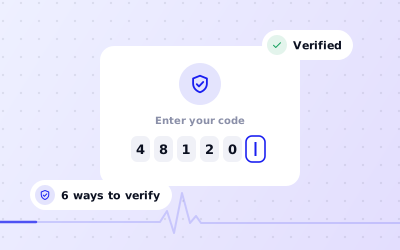
Google's help says that if you move to a new address after your business is verified, you need to verify again. Verification confirms that the business genuinely operates where it says it does, so a new address means a new check.
Google decides which methods to offer: a phone call or text, email, a video recording, a live video call or a postcard. Codes are tied to an address, so a code requested for the old address won't work for the new one. Editing the name, address or category while a code is pending cancels it, so make your changes, verify, then leave the profile alone until it's done. Our verification guide explains each method.
What to have ready
- Permanent signage with your business name at the new address
- A plan for a short, continuous video: the street and exterior, your signage, the entrance, then inside the premises
- Proof of address in the business name, such as a lease, utility bill or business rates bill
- Business registration showing the new address where it applies, such as Companies House records or a GST certificate
- Equipment, stock or tools that show the business operates there
- Access to the phone number and email on the profile, in case Google offers those methods
What to update after you change your address
Customers find you through more than one site, and conflicting addresses confuse both people and search engines. Once the new address is live on your profile, work through the rest of the list so every source agrees.
- Your website: contact page, footer, location pages and any structured data
- Google Ads location settings and any other Google products that use the address
- Apple Business Connect and Bing Places for Business
- Directories you're listed in, such as Yell in the UK or Justdial in India
- Social media profiles, booking systems and delivery apps
- Invoices, email signatures, printed menus, leaflets and review cards
- Your opening hours, phone number and photos on Google, if any of them changed with the move
Use exactly the same format everywhere. If your profile says ‘Unit 4, Riverside Park’, don't write ‘4 Riverside Pk’ on your website.
If customers don't come to you: the service-area option
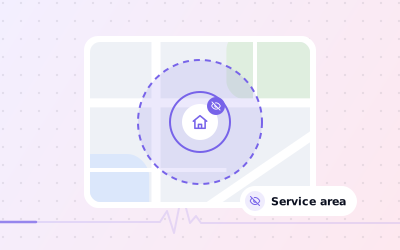
If you visit or deliver to customers and don't receive them at your premises, Google's guidelines say you should hide your address and show service areas instead. That's typical for plumbers, cleaners, mobile hairdressers and tutors who work from home.
- To hide the address, open Edit profile, then Location, select Edit next to Business location and turn off Show business address to customers.
- Add up to 20 service areas, using towns, cities, postcodes or other named areas rather than a radius.
- Keep the overall area within about two hours' drive of where you're based.
- If you serve customers at your premises and also travel to them, show the address and add service areas.
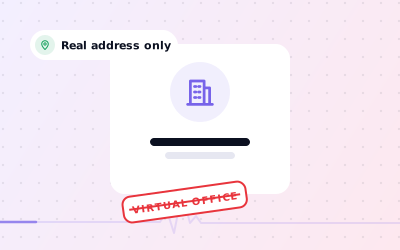
Our guide to hiding your address covers this in detail. If you're tempted to use a mailing address in a better-located town, read our virtual office guide first: virtual offices aren't eligible for a profile.
Common problems when you update a business address
| Problem | Likely cause | What to do |
|---|---|---|
| Google can't find the address | A new building, an unusual format or a unit number Google doesn't recognise | Re-enter the highlighted parts, then use Adjust to place the pin by hand |
| The old address still shows | The edit is still under review | Wait: Google says changes can take up to 30 days, so don't resubmit |
| Edit not approved | The address doesn't match your signage, website or other sources | Make sure your signage and website show the new address, then try again |
| Asked to verify again | A move after verification | Complete the method Google offers without editing anything else meanwhile |
| No Business tab in Google Maps | Signed in to the wrong Google account | Switch to the account that owns or manages the profile |
| Profile suspended after the move | Google judged the new address or setup against its guidelines | Read the notice and fix the cause before you appeal |
If your profile was suspended after the change, see our suspended profile guide. If you end up with listings at both addresses, see merging duplicate profiles: owners can't merge profiles themselves, but Google can when duplicates are reported.
Sources: Google Business Profile Help: Manage your business address; Google Business Profile Help: Edit your Business Profile; Google Business Profile Help: Move your reviews across Business Profiles.