

 Updated October 2026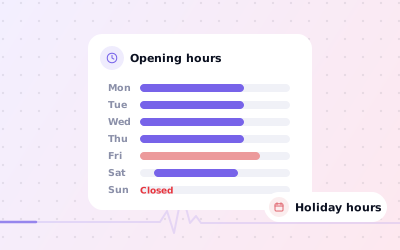
 In short
- Edit regular hours under 'Edit profile' and then 'Hours', in Google Search, the Maps app or Business Profile Manager.
- Use special hours for bank holidays, festivals and one-off closures, rather than changing your regular hours.
- 'More hours' lets you show separate times for things like delivery, takeaway or breakfast.
- Mark the business temporarily closed for longer breaks, so customers aren't sent to a locked door.
How do I change my business hours on Google?
Start with the correct Google Account and a clear view of which business or location is involved. Platform interfaces can change, so use Google’s current Help instructions for sensitive account, policy or verification decisions.
Find your profile
Sign in and search for your business name, or 'my business', in Google Search.
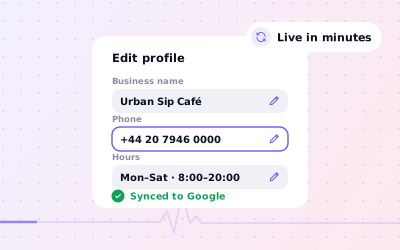
Select 'Edit profile'
Choose 'Edit profile' in the management panel, then open the Hours section.
Choose your opening status
Pick 'Open with main hours' to show opening times. Other options cover businesses with no set hours, and temporary or permanent closures.
Set each day
Switch each day on or off and enter opening and closing times. Days left off show as closed.
Save
Select 'Save'. Hours usually update within minutes, although Google sometimes reviews a change first.
Google moves these options now and then. If your screen looks different, look for 'Hours' or 'Opening hours' among the profile's edit options. After saving, check what customers see: search for your business in a private browser window, or ask a colleague to look it up on Google Maps.
How to edit business hours on Google from your phone or for many locations
In the Google Maps app
This is how to edit hours on Google from your phone. Tap your profile picture, open your Business Profile, tap 'Edit profile' and then the hours section. Changes save to the same profile you'd edit on a computer.
In Business Profile Manager
At business.google.com, select a location and edit its hours. To give many locations the same holiday hours, select them in the list and edit them together where Google offers the option, or use a spreadsheet upload if you manage 10 or more locations.
How to set holiday and special hours
Special hours override your regular hours on chosen dates, such as Christmas, Easter Monday, Diwali or Eid, a stocktake or a staff training day. Your regular hours stay as they are.
Open the hours editor
Go to 'Edit profile' and the Hours section.
Add special hours
Choose the special or holiday hours option. Google often suggests upcoming public holidays for you to confirm.
Pick the date
Add the date, then either mark it closed or enter the hours you'll be open.
Save
Save and repeat for each date. Add them a few weeks ahead so customers see them while planning.
Holidays to plan for
In the UK, plan for bank holidays such as Good Friday, Easter Monday, the May and August bank holidays, Christmas Day and Boxing Day, remembering that Scotland and Northern Ireland have some different dates. In India, holidays vary by state and festival calendar, so check dates such as Diwali, Holi, Eid, Pongal or Onam for each branch's region. Google suggests some public holidays, but not every local one, so keep your own list.
Use 'more hours' for services with their own times
'More hours' shows separate times for part of your business alongside your main opening hours. The options depend on your primary category. Typical examples include:
- Restaurants and cafés: breakfast, lunch, dinner, kitchen, takeaway or delivery hours
- Shops and supermarkets: pickup, delivery or senior hours
- Bars: happy hours
- Drive-through outlets: drive-through hours
- Businesses that also serve customers remotely: online service hours
If the type you want isn't offered, it isn't available for your category. Don't change your primary category just to get an extra hours type; our guide to choosing Google Business Profile categories explains how to pick the right one.
Split shifts, late nights and 24-hour opening
Unusual hours are easy to get wrong. Here's how to enter the common cases:
| Situation | What to enter |
|---|---|
| Closed for lunch | Add a second time period for the day, such as 09:00 to 13:00 and 14:00 to 18:00 |
| Open past midnight | Enter the closing time after midnight, such as 18:00 to 02:00, on the day you open |
| Open around the clock | Choose the 24-hour option for that day |
| No fixed opening times | Choose 'Open with no main hours' and explain how to book in your description |
| Closed one day a week | Leave that day switched off so it shows as closed |
| Hours that change by season | Update your regular hours when the season changes; use special hours for single dates |
Temporary closures and seasonal changes
For a closure lasting days or weeks, such as a refit, choose 'Temporarily closed' rather than switching every day off. Customers can see you'll be back, and your profile and reviews stay as they are. When you reopen, switch back to 'Open with main hours'.
If you're closing for good, mark the business permanently closed instead; our guide to deleting or closing a Google Business Profile explains the difference. If you've moved, change your address and keep your hours.
Updating hours for many locations
Holiday hours are the job that catches chains out, because every branch needs them, often with local differences such as regional bank holidays or festival dates.
For other details, such as your phone number or description, see our hub on how to change your business information on Google.
Sources: Google Business Profile Help: Edit your business hours; Google Business Profile Help: How to set Special hours; Google Business Profile Help: How to set More hours.