

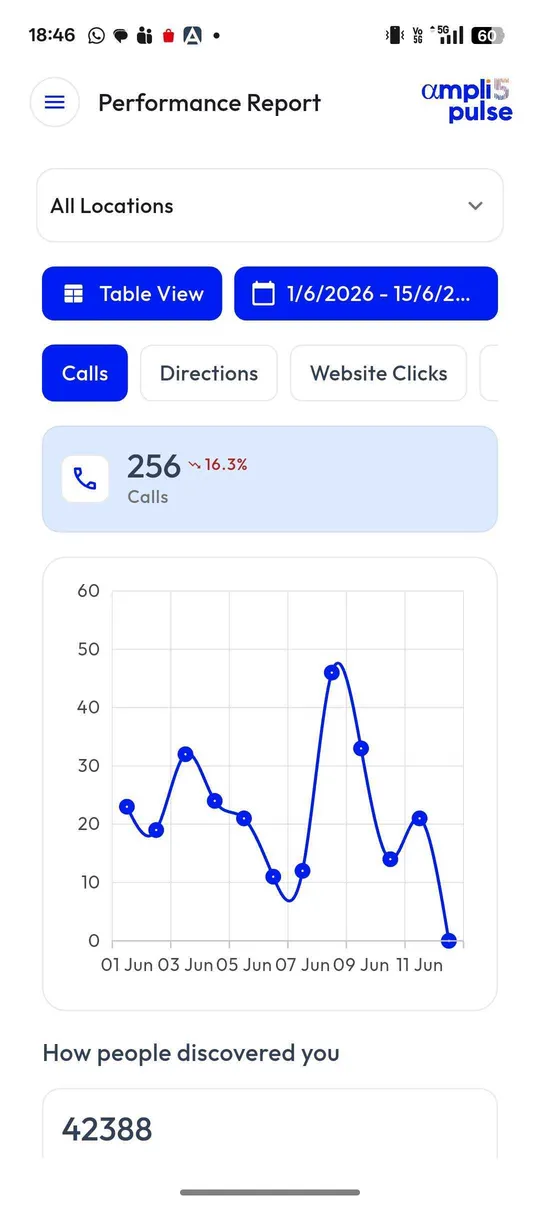
 Calls from your profile tracked for every branch
 Explore the Platform
 Request a Demo


 In short
- Trades that don't serve customers at their premises should hide their address, set a service area they really cover and choose the most specific primary category.
- Keep your business name as it appears on your van and invoices, and never create profiles at virtual offices just to appear in more towns.
- Make asking for a review part of finishing every job, with a QR code card or a review link sent by text or WhatsApp the same day.
Setting up a Google Business Profile for home services
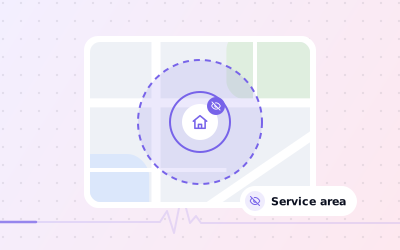
Most trades don't have a shop. Google calls these service-area businesses: you travel to customers rather than them coming to you. Google's guidelines say a service-area business should hide its address from customers and set the area it serves, which shouldn't extend further than about two hours' drive from where the business is based.
- Hide your address if customers don't visit your premises. Our guide on how to hide your address shows where the setting is.
- Set your service area by the towns, cities or postcodes you really cover.
- Choose the most specific primary category, such as Plumber, Electrician, Locksmith or House cleaning service, and add others only for work you genuinely do.
- Use a phone number that is answered, or goes to a voicemail you check, during your listed hours.
- Write a description that names your trade, your area and what you do and don't cover. You have up to 750 characters.
- Keep your business name as it appears on your van and invoices. Adding keywords or town names breaks Google's guidelines.
| Trade | Searches customers make | Details to get right |
|---|---|---|
| Plumber and heating engineer | emergency plumber near me, boiler repair, blocked drain | Out-of-hours availability, Gas Safe registration in the description where it applies |
| Electrician | electrician near me, EV charger installation, rewiring | Services list, qualifications, photos of tidy work |
| Cleaner | end of tenancy cleaning, deep cleaning service, office cleaners | Service area, what's included, team photos |
| Locksmith | locksmith near me, locked out | Accurate hours, honest response times, a genuine local base |
| AC and appliance repair | AC service near me, washing machine repair | Brands covered, seasonal hours, service area |
Getting reviews from every job
Trades businesses finish several jobs a week, and every satisfied customer is a potential review. The trick is to make asking part of finishing the job, not something you remember once a month.
Ask at the end of the job
When the customer says thanks, ask whether they would mind leaving a Google review. Ask everyone the same way.
Make it easy
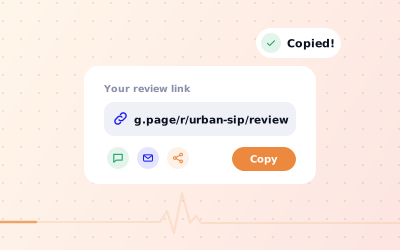
Leave a card with your review QR code, or send your Google review link by text or WhatsApp the same day.
coordinate responses to customer feedback
Thank them for the specific job, such as 'Glad the new consumer unit is in and working.'
Never pay for reviews
No discounts or prize draws in return for reviews, and no reviews from family or staff. Google prohibits both.
Thanks, Mark. Glad we could get the boiler going again before the weekend. Give us a call when it's due for its annual service.
Thanks for your feedback. Our call-out charge is on our website and confirmed on the phone before we attend, but we're sorry it came as a surprise. Please ring the office if you'd like to talk it through.
We can't find a job matching this review in our records. If we've worked for you, please contact the office with your address so we can look into it.
Ampli5 Pulse sends instant review alerts to your phone, drafts replies with AI in your voice and shows sentiment and themes such as 'punctual', 'tidy' or 'price'. If a review looks fake, you can report it to Google; you can't delete it yourself. More tips are in our guide on how to ask for Google reviews.
Local SEO for plumbers, electricians and cleaners
Local SEO for home services is shaped by distance. Google ranks profiles mainly on relevance, distance and prominence, and a service-area business usually ranks most easily near its own base, even when the address is hidden, and less easily at the edges of its area. Rank tracking by town shows you where that edge is.
What helps further out
- Reviews in which customers mention the job and the town naturally. Never script them.
- Posts about recent work in those areas, such as a new bathroom fitted in Sevenoaks this week.
- Photos of real jobs: before and after, the van, the team at work.
- A website with a clear page for each service you offer.
Seasonal post ideas
| Season | Trade | Post idea |
|---|---|---|
| Autumn | Heating engineer | Book your boiler service before the cold weather arrives |
| Winter | Plumber | How to protect pipes from freezing, and when to call us |
| Spring | Cleaner | Spring deep cleans and end-of-tenancy slots for the moving season |
| Before summer | AC technician | AC servicing ahead of the hot months |
| Before the monsoon | Waterproofing contractor | Roof and wall leak checks before the rains |
Multi-branch trades and home service franchises
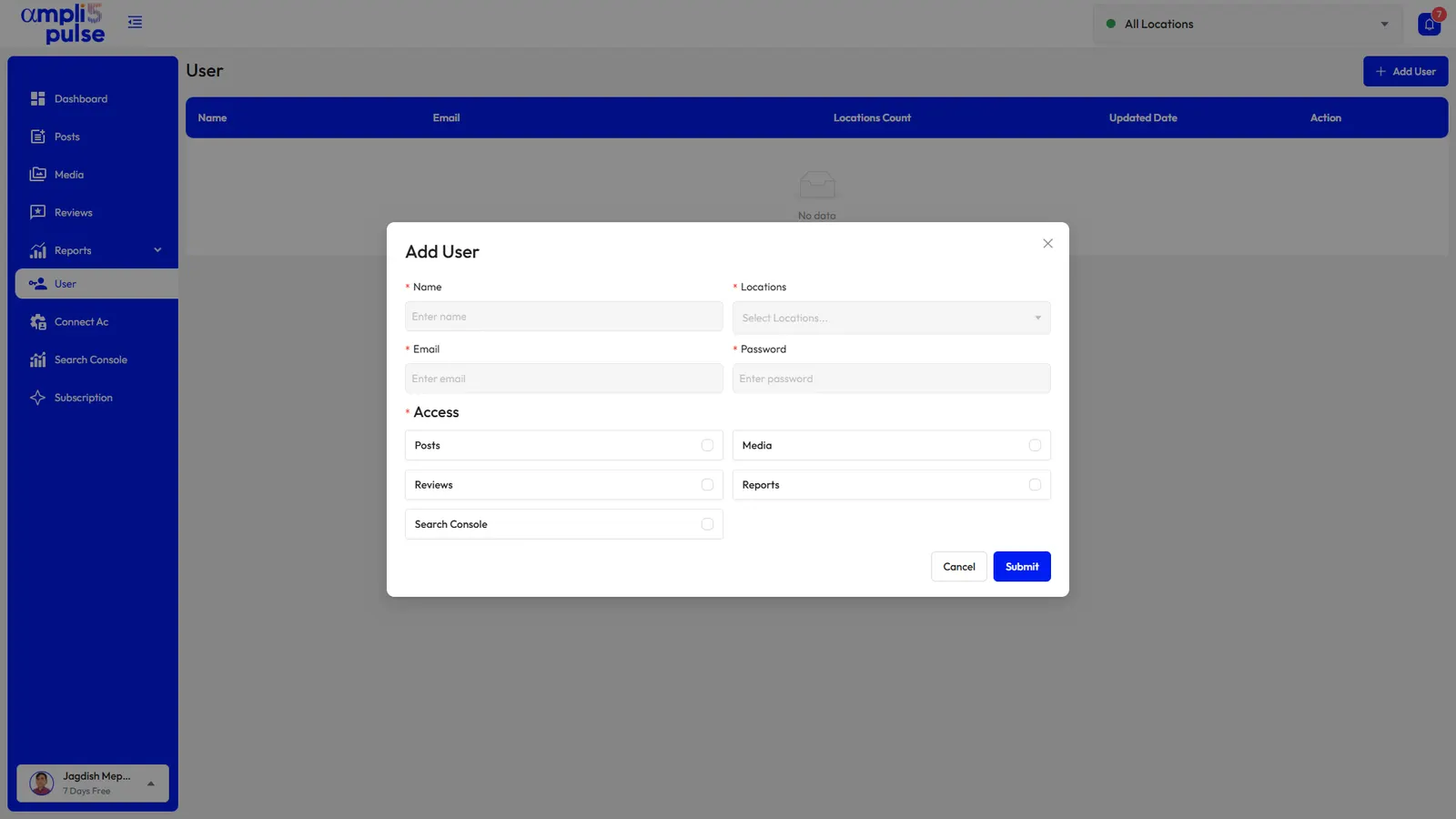
Franchises in cleaning, drain clearance or handyman services, and trades businesses with several offices, need each genuine branch to have its own profile, its own service area and someone responsible for it.
- Location groups for regions or franchisees.
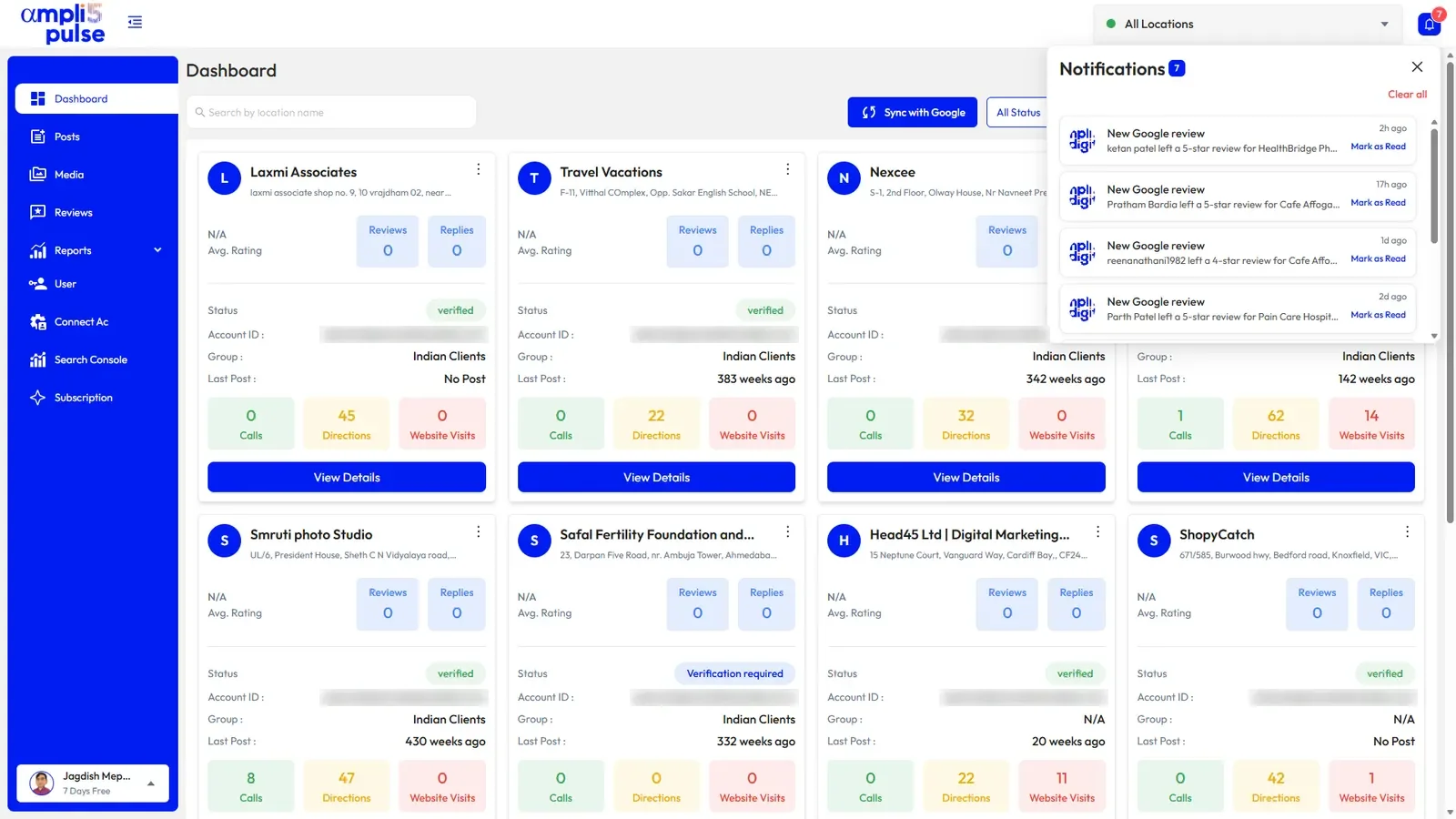
- A colour-coded performance table showing calls for each branch.
- Needs-attention alerts for branches that fall behind.
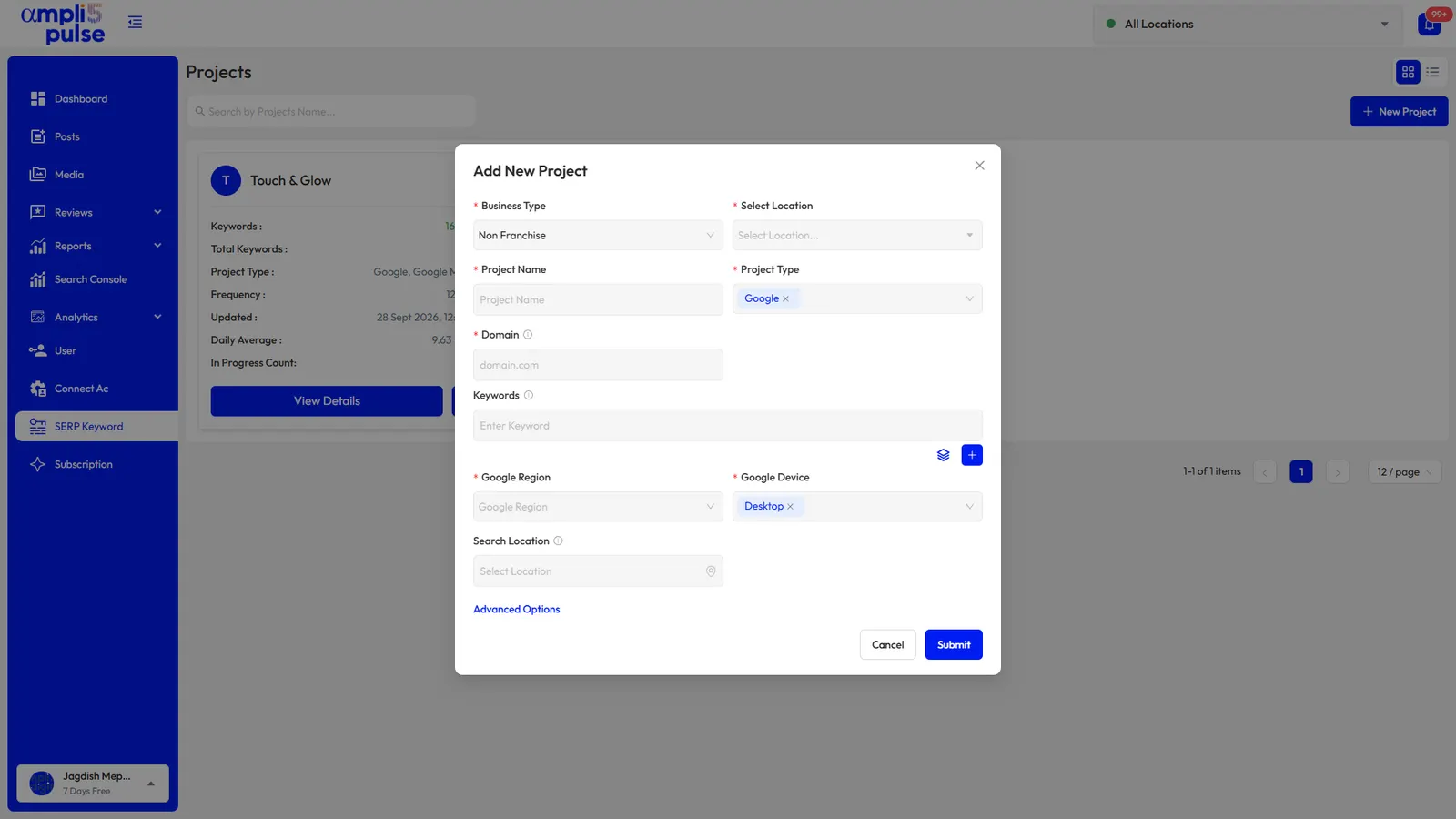
- Bulk edits for holiday hours, phone numbers and websites.
- Scheduled monthly reports to each franchisee, or white-label reports from your agency.