

 Updates, Offers and Events with a photo
 Explore the Platform
 Request a Demo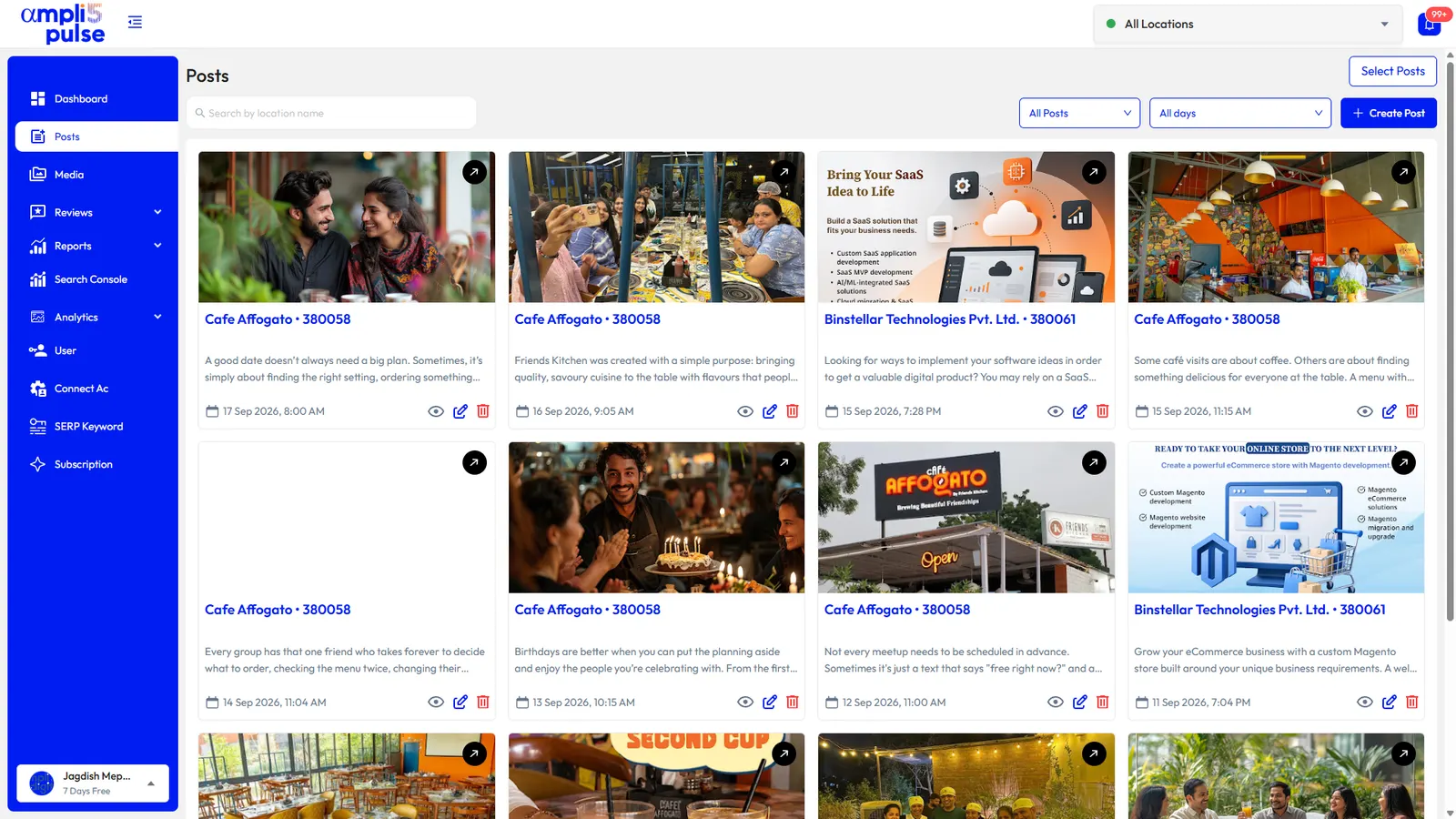



 In short
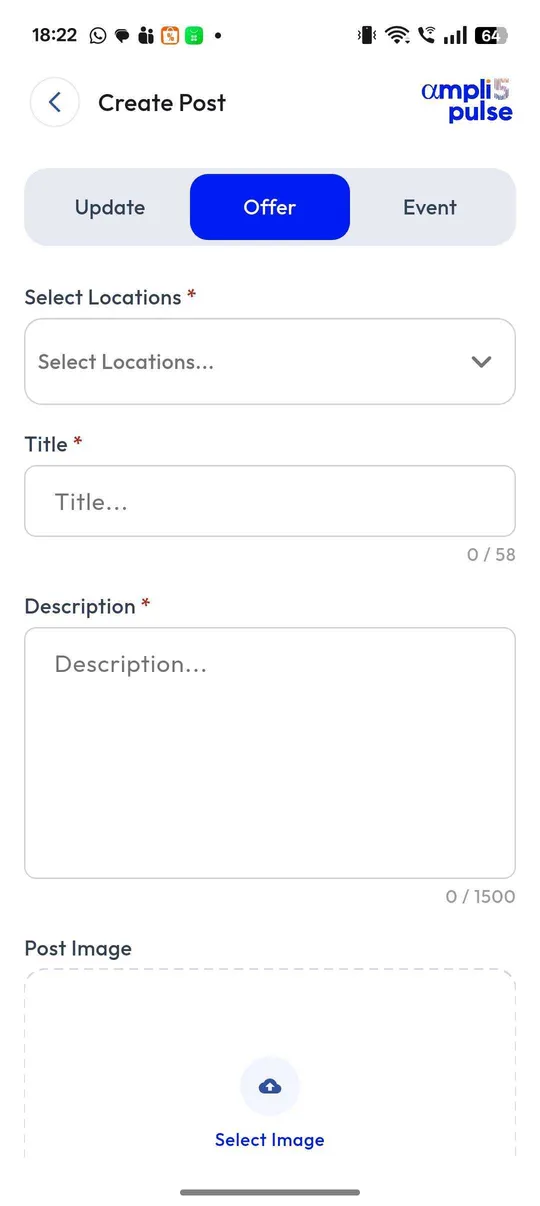
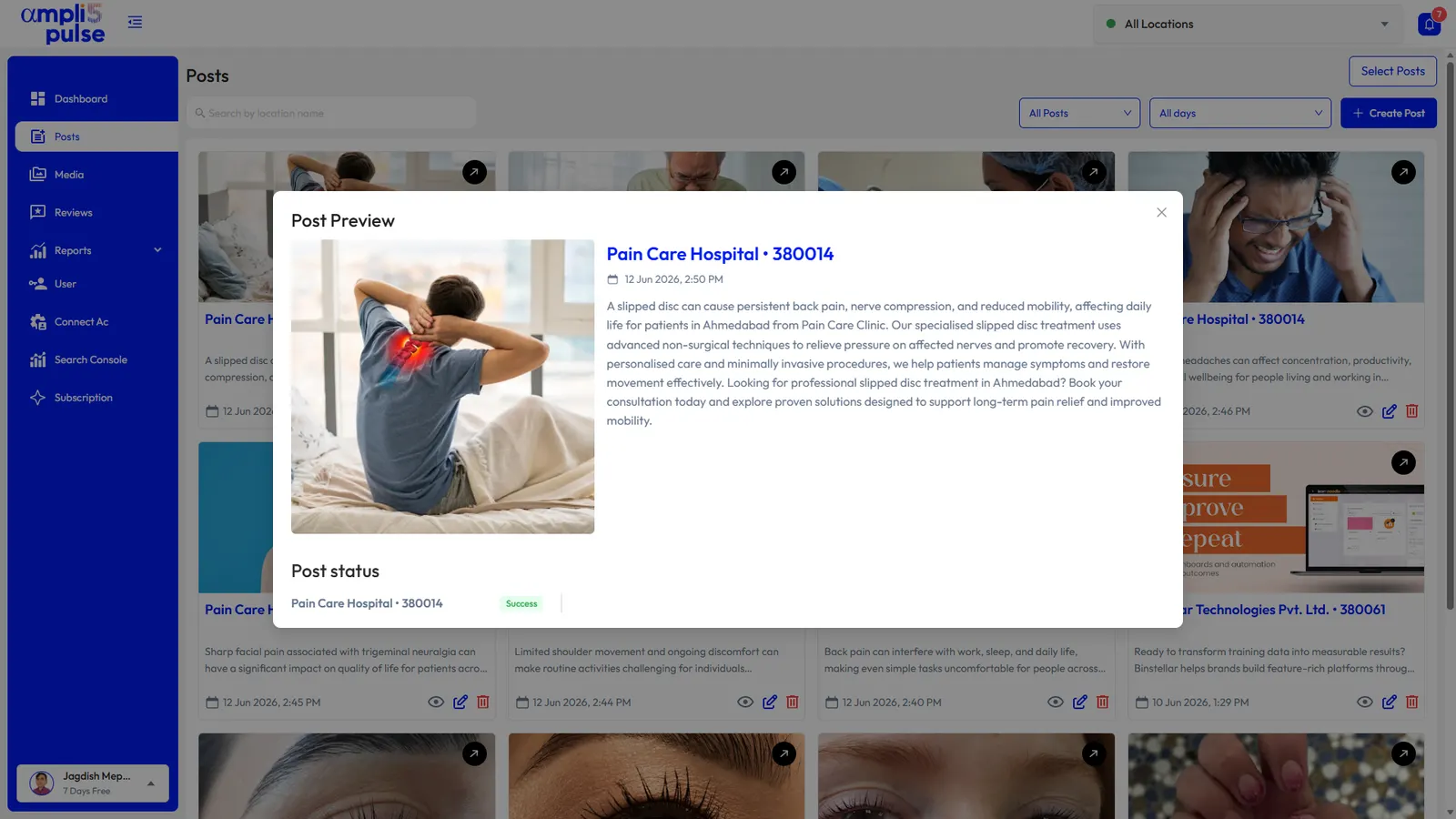
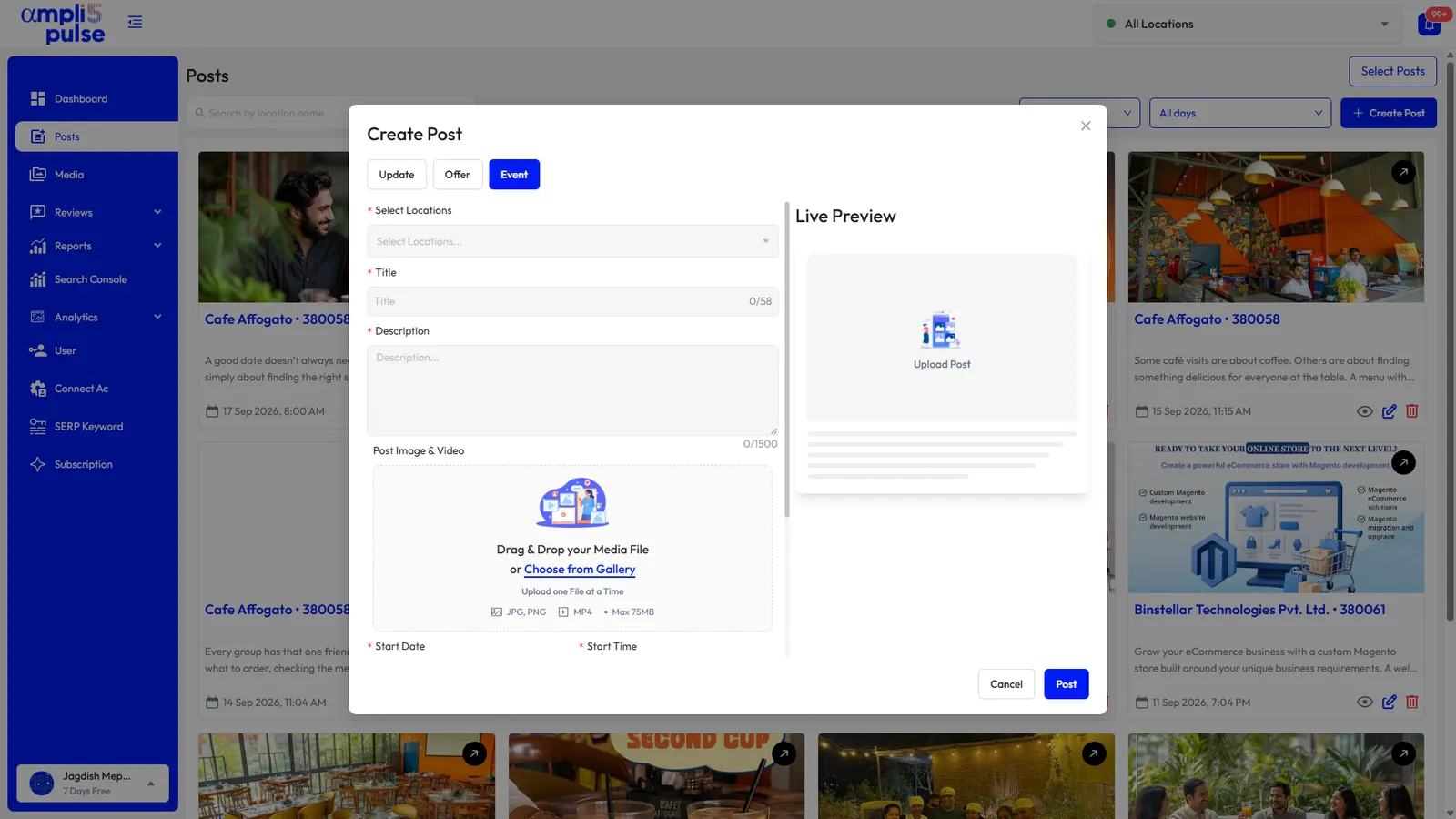
- There are three types of Google post: Updates for news, Offers for dated promotions and Events for workshops, launches or open days, each with a button.
- Good posts carry one message, one photo and one action, and a steady rhythm, such as weekly, keeps the profile looking current.
- Google hasn't said posting directly improves rankings, so treat posts as a way to give people already viewing your profile a reason to call, visit or book.
What are Google My Business posts?
Start with the correct Google Account and a clear view of which business or location is involved. Platform interfaces can change, so use Google’s current Help instructions for sensitive account, policy or verification decisions.
| Post type | Use it for | What you can add |
|---|---|---|
| Update (“Add update”) | News, new products, seasonal menus, changes to opening times | Text, a photo or video, and a button |
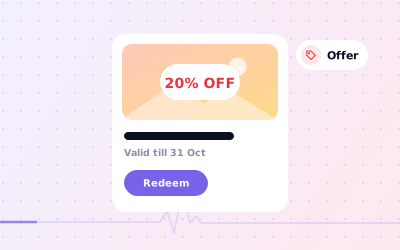
| Offer | Discounts and promotions that run between two dates | A title, start and end dates, a photo or video and a button, plus optional details such as a voucher code and terms |
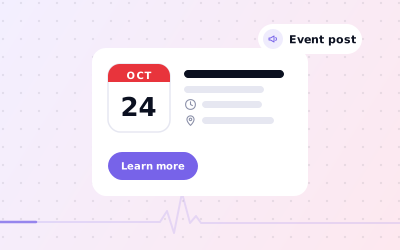
| Event | Workshops, launches, tastings, open days | An event title, start and end dates and times, a photo or video and a button |
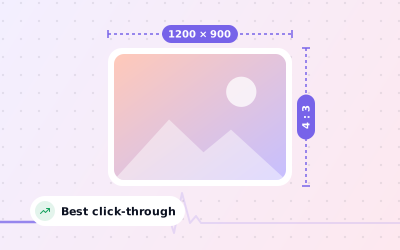
Buttons let readers act straight away. Google offers a handful of options, such as Book, Order online, Buy, Learn more, Sign up and Call now; pick the one that matches what you want people to do. For images, aim for 1200 × 900 px (4:3) and no smaller than 400 × 300 px, saved as JPG or PNG between 10 KB and 5 MB. Our post image size guide has cropping tips.
Google My Business post examples you can adapt
Good posts are specific: one message, one photo, one action. These GMB post examples show the pattern for different kinds of business. Swap in your own details, prices and dates.
Our autumn menu starts today at Station Road: spiced pumpkin latte, cheese and chutney toasties and a vegan carrot cake. We're open from 7am, or tap Order online to collect on your way to work.
20% off colour appointments booked Monday to Wednesday this month. Mention this post when you book or use code AUTUMN20 online. One per client; not valid with other offers.
Free posture check morning this Saturday, 10am to 1pm. Our physiotherapists will look at how you sit at your desk and answer your questions. No appointment needed; tap Learn more for details.
Back in stock at our Market Street store: the waterproof walking boots that sold out last winter, in sizes 4 to 12. Tap Call now to check your size is in before you visit.
Kids eat free on Sundays at every branch this month: one free kids' meal with each adult main. Tap Book to reserve your table at your nearest restaurant.
How to post to Google My Business
You can post straight from Google for free. Sign in with an account that owns or manages the profile, then follow these steps. Google moves its buttons from time to time, so the wording on your screen may differ slightly.
Open your profile
Search for your business name on Google, or open the Google Maps app and go to your Business Profile.
Choose the post type
Look for the option to add an update, an offer or an event.
Add a photo or video
Use a clear, well-lit image of the real thing: the dish, the product, the team or the event space.
Write the post
Put the main point in the first line, then add the details: what, when, where and for whom.
Add a button
Choose the action you want, such as Book or Learn more, and add the link it should open.
Check and publish
Check dates, prices and links, then publish. A new post can take a little while to appear.
For the two time-limited types there are step-by-step guides: how to create an offer and how to create an event. Posting needs a verified profile, so if you're looking to post your business on Google for the first time, start with how to create a Google Business Profile.
Google Business Profile posting best practice
- Post regularly. Google doesn't set a frequency, but a steady rhythm, such as weekly, keeps the profile looking current.
- Make each post local: mention the street, area or branch so it reads as written for that location.
- Stick to one message per post. If you have two pieces of news, write two posts.
- Use your own photos rather than stock images or graphics crowded with text.
- Put the essential detail in the first sentence; only the start may show before someone taps.
- Keep offers honest, with clear dates, real prices and the terms that apply.
- Use the button for calls, bookings and links instead of pasting phone numbers or long web addresses into the text.
- Check that each location's post went live, and remove offers that end early.
Posting to many locations with Ampli5 Pulse
Posting profile by profile soon becomes a part-time job when you have 10, 50 or 500 locations. Head office wants the brand-wide offer out everywhere on the same morning; store managers want to add their own local news without waiting for anyone.
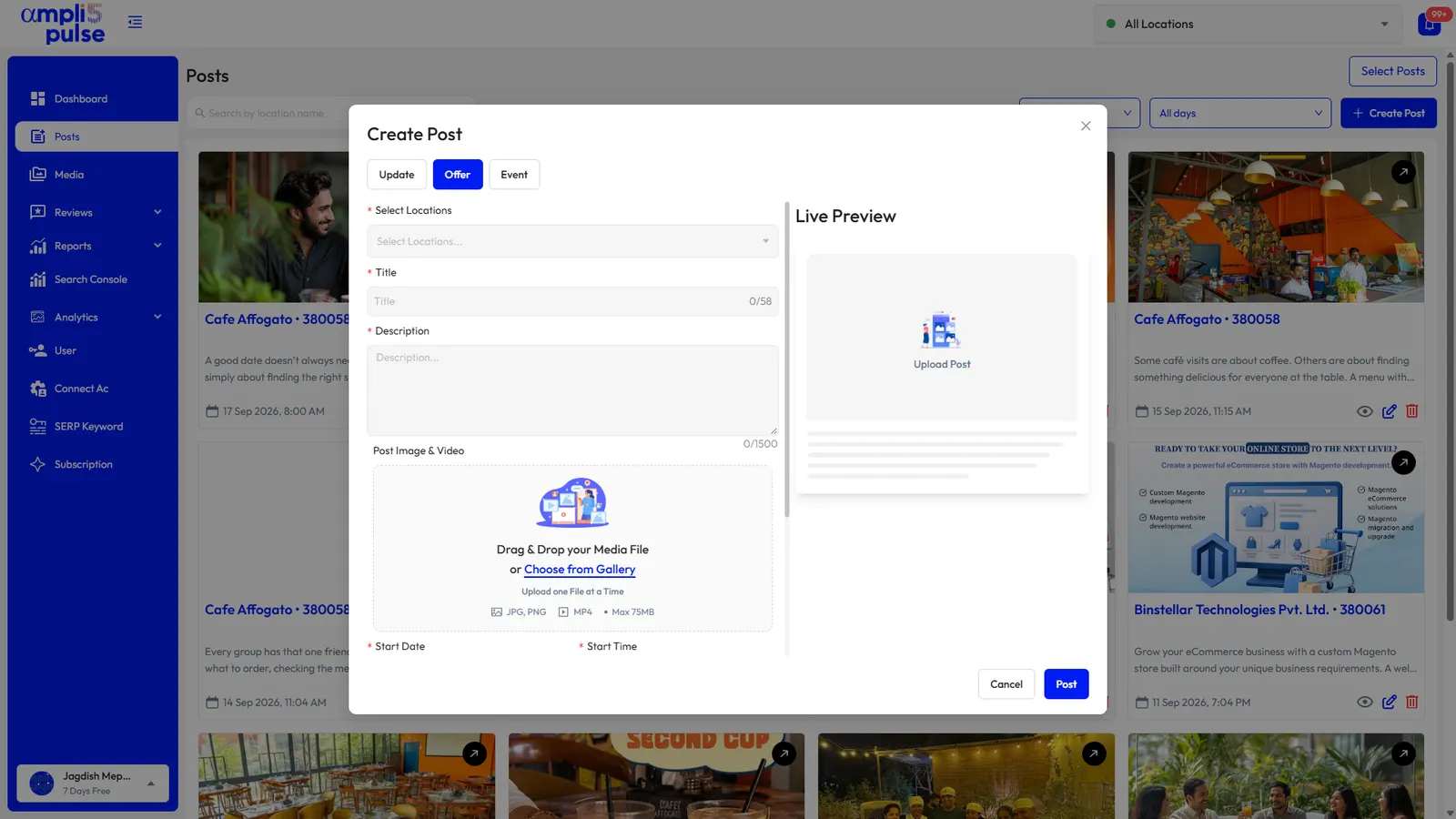
Ampli5 Pulse handles both. Head office writes the offer once and sends it to every branch or to one region, while store managers post updates for just their location. Posts can be scheduled, new Instagram posts can flow to Google automatically, and AI suggests ideas when the calendar looks thin.
Posts work best alongside fresh photos and quick review replies. See Google reviews management and our guide to updating your Google Business Profile.