

 Updated October 2026
 In short
- Offers are one of three post types on your profile, alongside Updates and Events.
- You need a title and dates; the description, coupon code, redeem link and terms are optional.
- Be specific: what's discounted, by how much, until when and how to claim it.
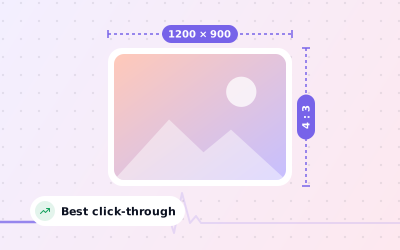
- Add a 1200 × 900 px photo of the actual product or service.
What a Google My Business offer is
Start with the correct Google Account and a clear view of which business or location is involved. Platform interfaces can change, so use Google’s current Help instructions for sensitive account, policy or verification decisions.
Use an offer for anything with a clear deal and a deadline: a discount, a free extra, a bundle or a first-visit incentive. If there's no deal, an Update is the better choice. Posts are available on verified profiles, so if yours isn't verified yet, start with how to verify your Business Profile.
| Post type | Best for | Extra fields |
|---|---|---|
| Update ('Add update') | News, new products and general announcements | Description, photo or video, optional button |
| Offer | Discounts, deals, bundles and promotions | Title, start and end dates, coupon code, redeem link, terms |
| Event | Workshops, classes, tastings, launches and open days | Title, dates, optional times, description, optional button |
Every field in a Google offer post
Work through the checks in order, documenting significant changes when more than one colleague manages the profile.
| Field | Required? | What to put in it |
|---|---|---|
| Offer title | Yes | The deal in a few words, such as '20% off your first eye test' |
| Start and end date | Yes | The real period the offer is valid for |
| Photo or video | Recommended | A 1200 × 900 px photo of the actual product or service |
| Offer details | Optional | What's included, who qualifies and how to claim |
| Coupon code | Optional | A short code your staff will recognise, such as GOOGLE20 |
| Link to redeem offer | Optional | The page where customers can book, order or claim |
| Terms and conditions | Optional | Limits and exclusions, such as one per customer |
Keep the details text tight. Google allows long descriptions, but people on phones see only the first lines, so put the deal, the deadline and how to claim near the start. Leave out anything that belongs in your profile instead, such as opening hours.
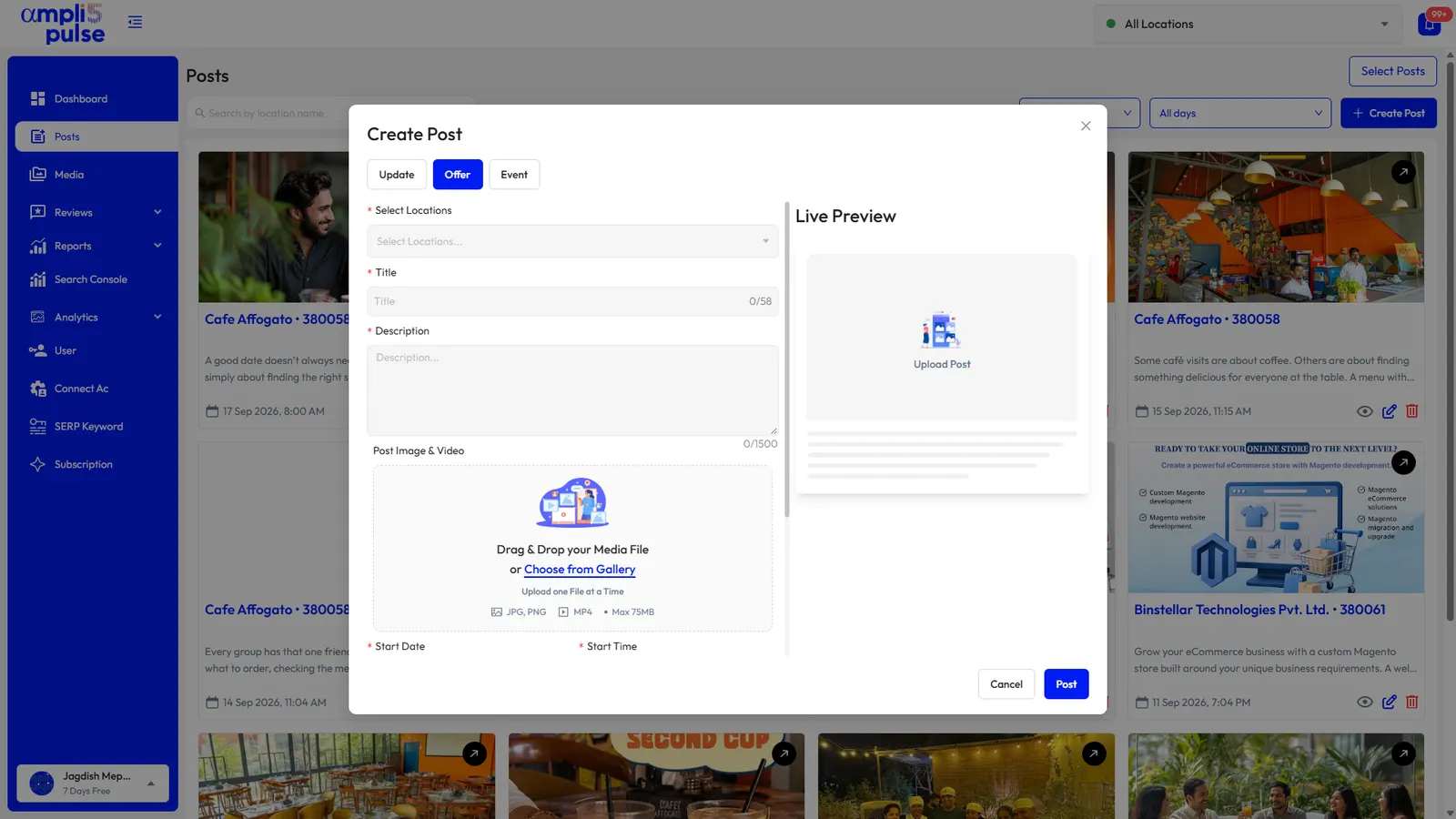

How to create an offer on Google Business Profile
You can create an offer from Google Search, the Google Maps app or Business Profile Manager. Google moves these menus occasionally, so the wording may vary slightly from the steps below.
Sign in
Use the Google account that is an owner or manager of the verified profile.
Open your profile
Search for your business name on Google, or open your profile in the Google Maps app.
Start a new post
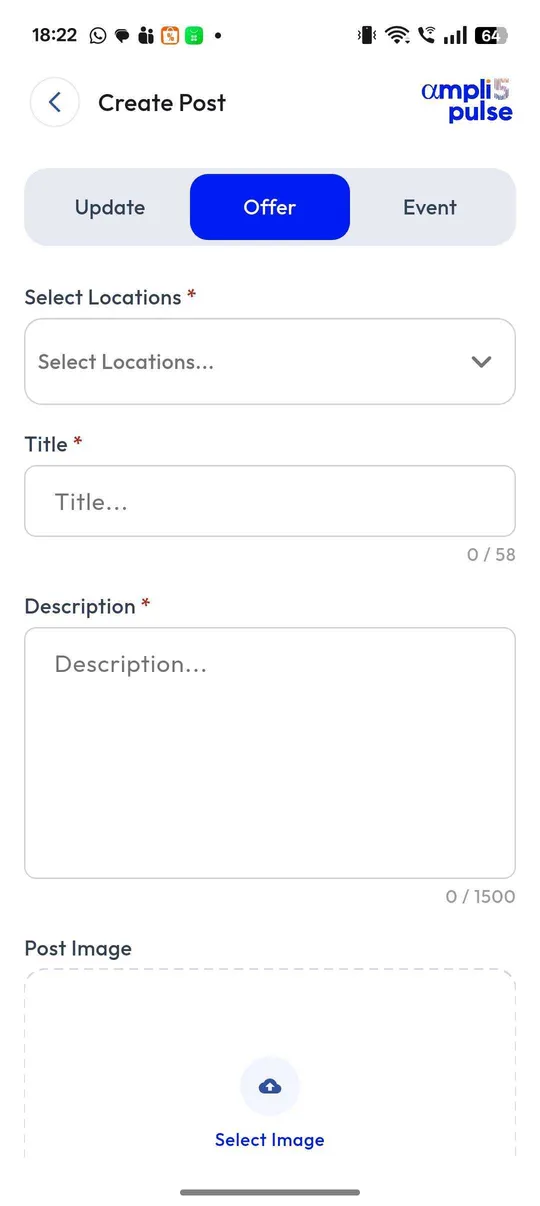
Choose the option to add an update, then select the offer tab, shown as 'Add offer'.
Add a photo
Upload a 1200 × 900 px photo of the product or service on offer.
Write the title and set the dates
Enter a short, specific title and the start and end dates the offer is valid.
Add the details
Fill in the description, coupon code, redeem link and terms you need.
Preview and publish
Check everything in the preview and publish. Google may review the post before it appears.
Choose the photo with care. Our guide to the Google Business Profile post image size explains how Google crops it in post previews.
Google My Business offer examples
Adapt these to your own business. Each one names the deal, the deadline and how to claim it, which is what makes an offer usable.
Title: Free pastry with any coffee before 10am. Dates: 1 to 30 November. Details: Show this post at the counter. Terms: One per customer per visit; not with other offers.
Title: £10 off your first eye test. Dates: until 31 January. Coupon code: GOOGLE10. Link: the online booking page. Terms: New customers only; book online or in store.
Title: 15% off colour on Tuesdays. Dates: this month. Details: Book any colour service on a Tuesday and quote the code. Coupon code: TUES15.
Title: 10% off Diwali gift hampers. Dates: the two weeks before Diwali. Link: the hampers page on your website. Terms: While stocks last; in store and online.
Title: First week free for new members. Dates: 1 to 31 January. Link: the sign-up page. Terms: New members aged 18 and over; one trial per person.
Title: Thali and a drink for ₹299, Monday to Friday. Dates: this month. Details: Served 12pm to 3pm at our MG Road branch. Terms: Dine-in only.
How to write an offer people actually use
- Lead with the number or the free item: '£10 off', 'first week free', '2 for 1'.
- Use a real end date, and keep the window short enough to prompt action.
- Put one offer in each post, so the title can say exactly what it is.
- Make sure staff know the offer and the code before it goes live.
- Link to a page that mentions the same offer, not just your home page.
- Use a code that's only shared on Google, so you can count how many people it brought in.
- Have the next offer ready before the current one ends.
Offers sit alongside your other posts, so a steady mix of Updates, Offers and Events keeps the profile looking active. Our guide to Google Business Profile posts covers how often to post and what to write.
Editing, ending and measuring your offer
You can edit an offer after publishing, for example to fix a typo or extend the end date, and you can delete it if the deal ends early. If you change the deal itself, it's clearer to delete the old post and publish a new one, so nobody sees mixed messages.
To see whether an offer worked, count the coupon code at the till or checkout, and add tracking parameters (UTM tags) to the redeem link so the visits show up separately in Google Analytics. Then compare calls, direction requests and website clicks from your profile during the offer with the weeks before it.
Sources: Google Business Profile Help: Create & manage posts on your Business Profile; Google Business Profile Help: Business Profile photos, videos & posts content policy.