

 Updated October 2026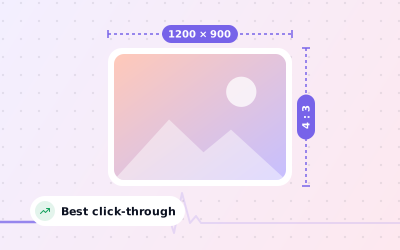
 In short
- Use 1200 × 900 px (4:3) for Updates, Offers and Events alike.
- Minimum 400 × 300 px; JPG or PNG, 10 KB to 5 MB.
- Keep the subject and any text in the centre, because previews can crop the edges.
- Put the message in the post text, not on the image.
Google My Business posts image size at a glance
Start with the correct Google Account and a clear view of which business or location is involved. Platform interfaces can change, so use Google’s current Help instructions for sensitive account, policy or verification decisions.
| Spec | What to use |
|---|---|
| Recommended size | 1200 × 900 px |
| Aspect ratio | 4:3 landscape |
| Minimum size | 400 × 300 px |
| File format | JPG or PNG |
| File size | Between 10 KB and 5 MB |
| Post types | Updates, Offers and Events |
4:3 is a practical choice because it is the default shape of most phone cameras, so a photo you take on the shop floor needs little or no cropping. At 1200 × 900 px it is sharp on large screens and still small enough to upload quickly.
Looking for the Google Business Profile post size more broadly? Besides the image, each post has a text box (Google allows up to 1,500 characters, but only the first lines show before people tap to read more) and, on Updates and Events, an optional button such as Book or Learn more.
How Google crops post images
Your post doesn't appear in one fixed frame. On your profile in Google Search and Google Maps, posts are shown as cards, and the image in each card can be trimmed to fit, especially in small previews on phones. Google decides the crop, and it can change when Google updates its layout.
- Images close to 4:3 need the least trimming.
- Square images are accepted but may lose a little at the top and bottom.
- Wide banners, such as 16:9, may lose more at the sides.
- Tall portrait photos are the most likely to be cut awkwardly.
Should you put text on post images?
Google doesn't publish a limit on how much text a post image can carry, but heavy text rarely helps. Words near the edges get cropped, small lettering is unreadable on a phone, and the post already has a text box for your message.
- Put the details, prices and terms in the post text, where they are readable and easy to update.
- If you add words to the image, keep them to a few large words, such as '20% off this week', with strong contrast.
- Keep any text and your logo away from the edges.
- Show the real product, dish, room or people rather than a graphic made only of text.
- Leave phone numbers off the image; use the post's button or your profile's call option instead.
Google reviews posts against its content policy, and posts with misleading claims, prohibited content or poor-quality images can be rejected. Our guide to Google Business Profile posts explains how posting works in more detail.
Using a video in a post
You can add a video to a post instead of a photo. Google's Business Profile video guidelines allow clips of up to 30 seconds and 75 MB, at 720p resolution or higher.
| Spec | Photo | Video |
|---|---|---|
| Size limit | 10 KB to 5 MB | Up to 75 MB |
| Dimensions | 1200 × 900 px recommended | 720p or higher |
| Length | Not applicable | Up to 30 seconds |
| Best for | Products, dishes, rooms and offers | Showing a process, a space or an atmosphere |
Shoot in landscape for the most predictable result, make the opening second count because that frame shows before anyone presses play, and don't rely on sound: many people watch with it switched off.
How to prepare and add a post image
Pick a real photo
Choose a photo that shows exactly what the post is about: the new dish, the product on offer or the room where the event happens.
Crop it to 4:3
Crop to 1200 × 900 px in any editor. Most phone photo editors have a 4:3 crop option built in.
Check the file
Save it as JPG or PNG under 5 MB. Convert HEIC or WebP files first, and avoid images that have been through a messaging app.
Start the post
Open your profile on Google Search or in the Google Maps app, choose to add an update, offer or event, and add your photo.
Preview and publish
Check how the image is cropped in the preview, then publish. Google may review the post before it appears.
Each post type has its own fields. See how to create an offer and how to create an event on your Business Profile.
Post image ideas by post type
A close-up of the new seasonal drink on the counter, shot in daylight, with the cup in the centre and the café softly in the background.
A stylist finishing a cut, photographed from the side with the client's permission, the chair and mirror filling the frame.
The actual product on offer on a plain table, with one short line such as '2 for £10' in large letters in the middle.
The thali or set menu that's part of the deal, shot from above, with the plate filling most of the 4:3 frame.
Last year's author evening, with the speaker and audience in view, so people can picture what they'd be coming to.
A real class in progress in your studio, taken from the back of the room, with no text over the image.
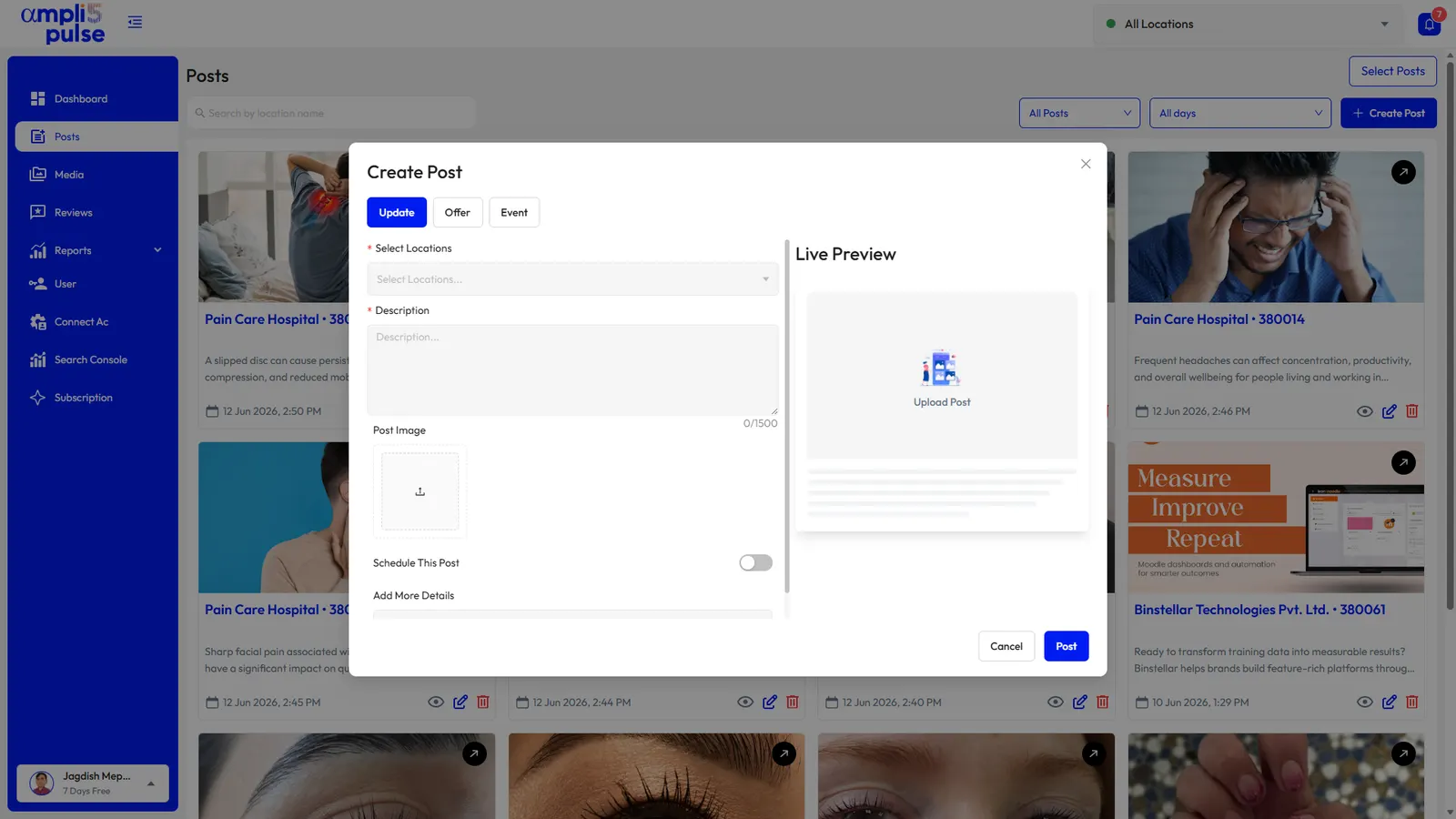
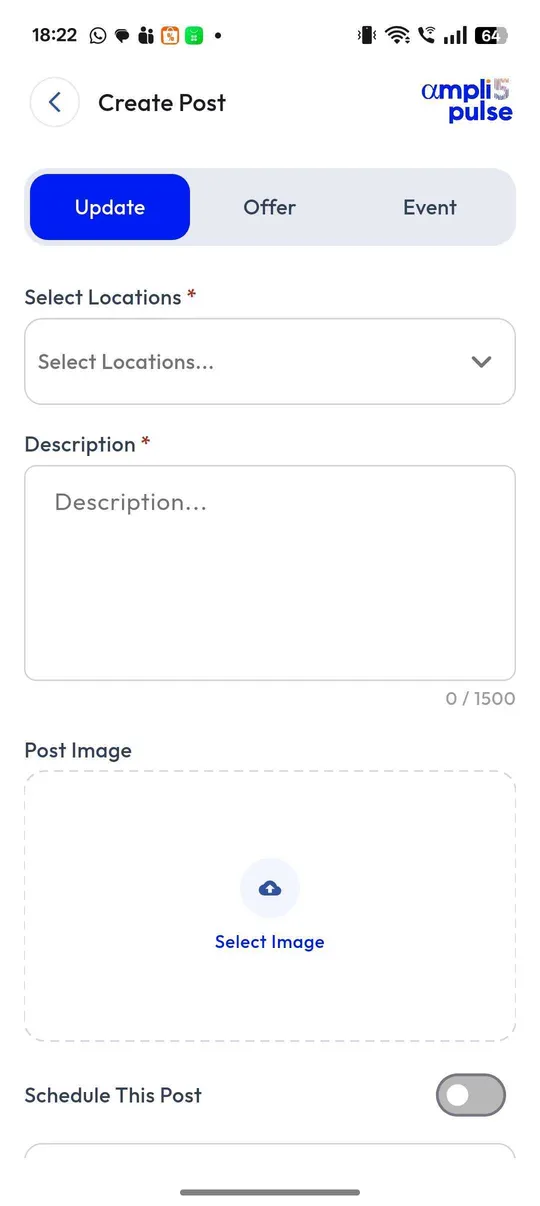
Previewing post images before they go live
If you publish posts for several locations, checking the image is the step people skip. A live preview while you write catches a bad crop before it's published, not after customers have seen it.
Sources: Google Business Profile Help: Create & manage posts on your Business Profile; Google Business Profile Help: Manage your Business Profile photos & videos; Google Business Profile Help: Business Profile photos, videos & posts content policy.