

 Updated October 2026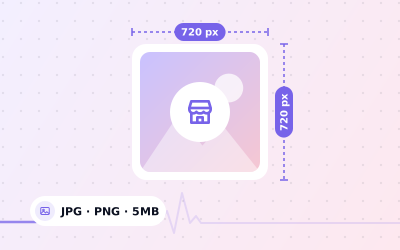
 In short
- Logo: square, 720 × 720 px recommended, 250 × 250 px minimum.
- Every Business Profile photo: JPG or PNG, 10 KB to 5 MB, in focus and well lit.
- Keep the logo centred with clear space around it, because Google shows it small and may crop it.
- A personal Google Account photo is separate from your business logo; use a square image with your face in the middle.
Google Business Profile picture size at a glance
Start with the correct Google Account anda clear view of which business or location is involved. Platform interfaces can change, so use Google’s current Help instructions for sensitive account, policy or verification decisions.
| Spec | What to use |
|---|---|
| Recommended size | 720 × 720 px |
| Minimum size | 250 × 250 px |
| Shape | Square (1:1 aspect ratio) |
| File format | JPG or PNG |
| File size | Between 10 KB and 5 MB |
| Quality | In focus, well lit, no heavy filters or edits |
| Content | Your logo or brand mark, centred with space around it |
Why 720 px when the logo is shown so small? Phones and laptops with high-density screens use two or three physical pixels for every pixel you see, so a logo that looks tiny still needs plenty of detail to stay crisp. Going much larger than 720 × 720 px adds nothing visible: Google resizes the image anyway, and a huge file only risks breaking the 5 MB limit.
Image sizes for every Google Business Profile photo type
The logo is only one of the images on your profile. Each type is displayed in a different shape, so it is worth preparing each one at its own size. The file rules are the same for every photo: JPG or PNG, between 10 KB and 5 MB.
| Image type | Recommended size | Minimum | Notes |
|---|---|---|---|
| Profile picture (logo) | 720 × 720 px, square | 250 × 250 px | Shown small; keep the logo centred |
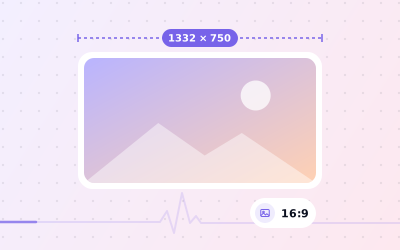
| Cover photo | 1332 × 750 px, 16:9 (our recommendation) | 250 × 250 px | Google publishes no exact cover size, and the edges are often cropped |
| Other photos (exterior, interior, products, team, at work) | At least 720 px on each side | 250 × 250 px | Real, unedited scenes of your business |
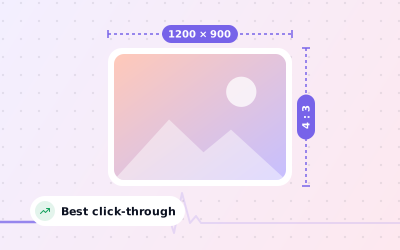
| Post images (Updates, Offers, Events) | 1200 × 900 px, 4:3 | 400 × 300 px | Previews may trim the edges |
| Videos | 720p or higher | Not stated | Google's video guidelines allow up to 30 seconds and 75 MB |
The two trickiest formats have their own guides: the Google Business Profile cover photo size, which Google doesn't define, and the post image size, which uses a 4:3 frame instead of a square.
How to prepare a logo that looks sharp
Most problems with a profile picture come from the file, not from Google. Ten minutes in any image editor, or the free design tool you already use, will avoid them.
- Start from the original logo file (a vector file or a large PNG), not a screenshot of your website or social profile.
- Create a square canvas of 720 × 720 px and place the logo in the middle.
- Leave clear space of about 10–15% on every side, so a circular crop doesn't clip the edges.
- Use a solid background in your brand colour or white. Transparent areas can end up on a white or dark background depending on where the logo is shown.
- Drop small taglines, web addresses and phone numbers. They are unreadable at small sizes.
- If your full logo is long and thin, use the symbol or initials on their own instead.
- Export as PNG for flat graphics or JPG for photographic logos, and check the file is under 5 MB.
How to add or change your logo on Google
Owners and managers can change the logo from Google Search, the Google Maps app or, if you look after many locations, Business Profile Manager at business.google.com. Google moves these menus from time to time, so the labels you see may differ slightly from the steps below.
Sign in with the right account
Use the Google account that is an owner or manager of the Business Profile.
Open your profile
Search for your business name on Google, or open your profile in the Google Maps app. With many locations, pick the location in Business Profile Manager.
Go to your photos
Choose the photos option in your profile's editing tools and look for the logo setting.
Upload the square file
Select your 720 × 720 px image and adjust the crop if Google offers it, so the whole logo sits inside the frame.
Check it on two screens
Once Google has processed it, view your profile on a phone and on a computer to make sure nothing is clipped.
New photos can take a while to appear because Google checks them first. If you can't find a logo option at all, check that the profile is verified and that your account has owner or manager access. Our guides on how to verify your profile and add users to your Business Profile cover both.
Why your profile picture looks wrong
The edges are cut off
Google crops the logo to fit the space it has, and in some views that space is round. Anything near the edges of a square canvas, such as the ends of a long wordmark, is the first thing to go. Add more padding and upload it again.
It looks blurry or pixelated
The source file was too small, or it was compressed along the way. Images sent through messaging apps such as WhatsApp are usually compressed, so export a fresh 720 × 720 px file from the original artwork instead.
Google shows a different image next to your name
The thumbnail beside your business in local results is not always your logo. Google often picks the photo it thinks best matches the search, such as your shopfront or a dish. That is normal, and the best response is to make sure all of your photos are good ones.
The upload is rejected
Check the basics: JPG or PNG, between 10 KB and 5 MB, at least 250 × 250 px. Photos from iPhones are often saved as HEIC, and many web images as WebP, so convert them to JPG or PNG first. Images with heavy filters or obvious edits may not be accepted either.
If an old logo is still showing after a rebrand, upload the new one first and then delete the old photo, so the profile is never left without a logo.
Size of Google profile picture for a personal account
Many people searching for a Google profile picture size mean the photo on their own Google Account, the one shown in Gmail and other Google apps. Google doesn't publish a strict pixel size for it. The photo is cropped to a circle, so use a square image with your face in the middle; something around 720 × 720 px or larger stays sharp. Avoid tiny images and screenshots.
To change it, open your Google Account (tap your photo in Gmail or another Google app and choose to manage your account), go to Personal info and select Profile picture. Your personal account photo and your business logo are separate: changing one doesn't change the other, and customers see the business logo on your Business Profile.
Keeping the Work Consistent Across Locations
For a network of branches, record the responsible person, the approved information and the completion status for each location. This makes it easier to spot omissions without assuming that one change applies everywhere.
Sources: Google Business Profile Help: Tips for business-specific photos on your Business Profile; Google Business Profile Help: Manage your Business Profile photos & videos; Google Account Help: Change your Google Account picture, name & other info.