

 Updated October 2026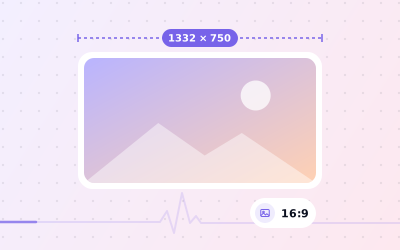
 In short
- Google publishes no exact cover size; 1332 × 750 px (16:9) is a reliable choice.
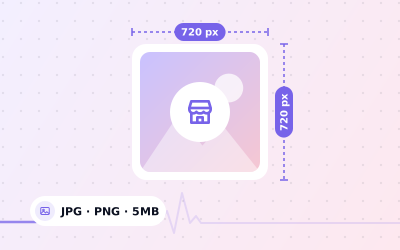
- Every Business Profile photo must be JPG or PNG, 10 KB to 5 MB, and at least 250 × 250 px.
- Keep people, signage and products in the middle, because the edges are often cropped.
- Your cover photo is a preference: Google may show a different photo first for some searches.
Google Business cover photo size: the short answer
Start with the correct Google Account and a clear view of which business or location is involved. Platform interfaces can change, so use Google’s current Help instructions for sensitive account, policy orverification decisions.
| Spec | What to use |
|---|---|
| Size | 1332 × 750 px (our recommendation; Google publishes no exact size) |
| Aspect ratio | 16:9 landscape |
| File format | JPG or PNG |
| File size | Between 10 KB and 5 MB |
| Minimum resolution | 250 × 250 px (Google's minimum for any photo), but aim far higher |
| Safe area | People, signs and products in the central part of the frame |
| Quality | In focus, well lit, a true picture of your business |
Why 16:9? A wide landscape frame suits the large spaces where Google tends to show a lead image, and it leaves room at the sides that can be cropped without losing the subject. At 1332 × 750 px the image is sharp on large screens, yet a well-compressed JPG stays comfortably under the 5 MB limit.
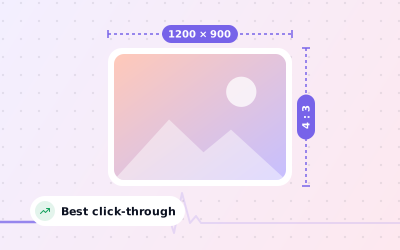
If your best photo is a different shape, such as the 4:3 frame most phone cameras produce, you don't have to force it into 16:9. Google accepts other shapes. Cropping to 16:9 yourself simply means you choose what gets cut, instead of leaving it to Google.
How Google shows and crops your cover photo
Work through the checks in order, documenting significant changes when more than one colleague manages the profile.
- Google Search on a computer: your profile panel usually shows a large lead image with smaller thumbnails, and the lead image may be trimmed at the top, bottom or sides.
- Google Search and Google Maps on a phone: photos tend to run across the full width of the screen, often in a scrolling strip, which can crop the image to a squarer shape.
- Local results and the map pack: the small thumbnail next to your listing is chosen by Google and is often not your cover photo at all.
This is why the safe area matters more than the exact pixel size. Whatever crop Google chooses, the middle of your photo will survive it.
Keep the important part in the centre
Treat the outer edges of your cover photo as space you might lose. Compose the shot so the part people need to see, whether that's the shopfront, the dining room, the treatment room or your team, sits well inside the frame.
- Place the main subject in the middle third of the image, not at one side.
- Leave sky, floor, wall or pavement around the edges, so a crop removes nothing important.
- Keep text out of the cover photo, or make it short, large and central.
- Shoot in landscape and keep the camera level, so walls and doorways don't lean.
- Look at the photo at phone size, as a thumbnail, before you upload it.
A quick test: cover the left and right fifth of the image with your fingers. If the photo still makes sense, it will survive Google's crops.
Choosing a Google My Business cover photo that works
The cover is often the first impression of your business, so pick the photo that answers the searcher's first questions: is this the place I'm looking for, and does it look good? Real photos of your actual business beat anything else.
- Café, restaurant or pub: the dining area in daylight, or your frontage with the sign clearly visible.
- Clinic, dentist or salon: a bright, tidy reception or treatment room.
- Shop: the entrance and window display, so people recognise it from the street.
- Hotel or venue: the space guests will use, photographed in natural light.
- Service-area business with no public address: your team at work, or a branded vehicle on a job.
Refresh the cover when something visible changes: a refurbishment, new signage, a rebrand, or a new season if your business looks different through the year.
How to add or change your cover photo
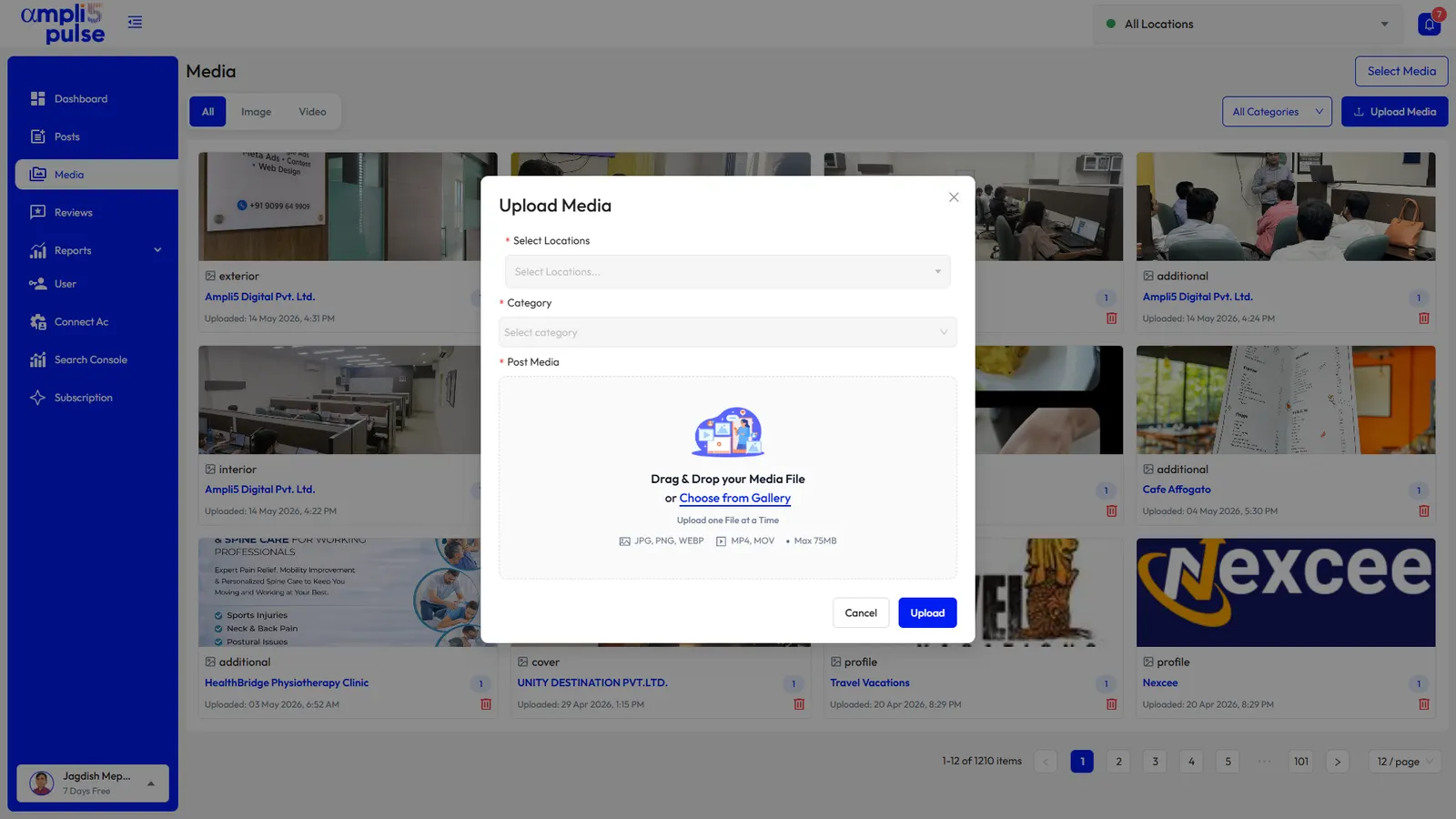
You can set the cover photo from Google Search, the Google Maps app or Business Profile Manager. Google moves these menus from time to time, so the wording may differ slightly from the steps below.
Sign in
Use the Google account that is an owner or manager of the profile.
Open your profile
Search for your business name on Google, or open your profile in the Google Maps app. With many locations, choose the location in Business Profile Manager.
Go to the photos option
Open the photos section in your profile's editing tools and find the cover photo setting.
Upload or pick a photo
Upload your 1332 × 750 px image, or choose one already on the profile, and adjust the crop if Google offers it.
Check the result
After Google has processed the change, look at your profile on a phone and a computer to make sure the subject isn't cut off.
Your previous cover photo usually stays in your photo gallery. If it shows something out of date, such as old signage, delete the old photo. For other changes, see how to update your Google Business Profile.
Why Google isn't showing your cover photo
- It's still being checked. New photos can take some time to appear.
- Google chose another photo for that search. This is normal and can change from one search to the next.
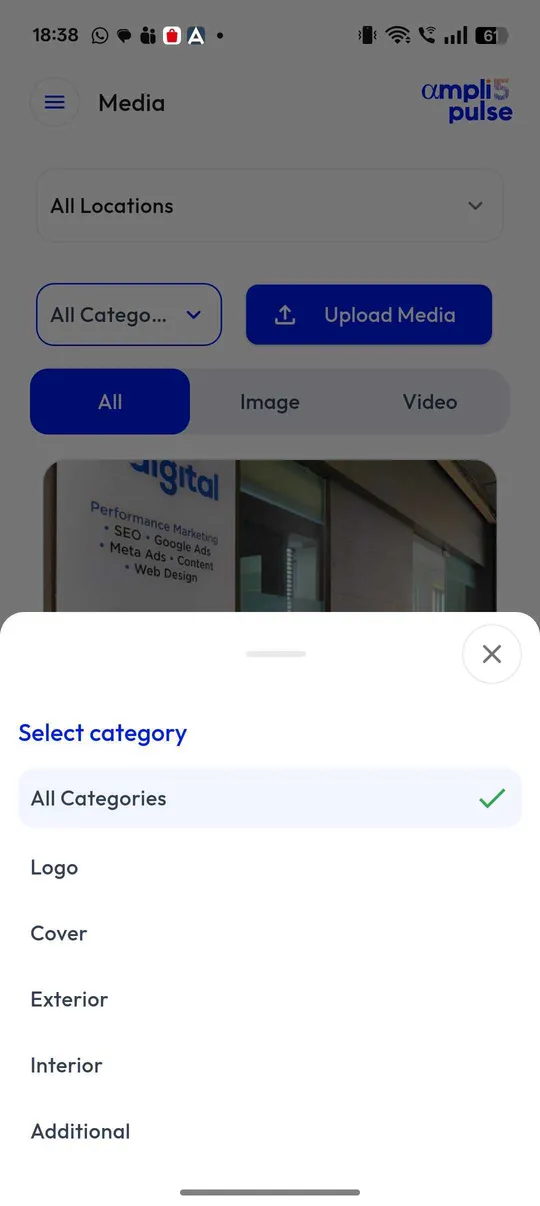
- It was added as an ordinary photo. Adding a photo to your gallery doesn't make it the cover; set it as the cover photo specifically.
- It didn't meet the guidelines. Very small, heavily edited or misleading images may not be shown.
- The profile has a wider problem. If no edits are appearing at all, check that the profile is verified and hasn't been suspended.
You can't force Google to show one photo, but you can make sure every photo it might choose is a good one. Remove weak photos you uploaded, add strong ones of your exterior, interior, team and products, and report customer photos that break Google's rules.
Updating cover photos across many locations
For a network of branches, record the responsible person, the approved information and the completion status for each location. This makes it easier to spot omissions without assuming that one change applies everywhere.
Sources: Google Business Profile Help: Manage your Business Profile photos & videos; Google Business Profile Help: Tips for business-specific photos on your Business Profile.