

 Updated October 2026
 In short
- Photos the business uploaded: open the photo in your profile's photos and delete it.
- Customer photos: report them to Google, which removes only those that break its policies.
- Genuine but unflattering photos usually stay, so add better photos of your own.
- Google Photos and your Google Account picture are deleted separately, outside your Business Profile.
Which Google Business Profile photos you can delete
Start with the correct Google Account and a clear view of which business or location is involved. Platform interfaces can change, so use Google’s current Help instructions for sensitive account, policy or verification decisions.
| Photo | Can you delete it? | What to do |
|---|---|---|
| Photos uploaded by the business | Yes | Delete it from your profile's photos |
| Your logo and cover photo | Yes | Upload a replacement first, then delete the old one |
| Photos added by customers | No | Report it to Google if it breaks the rules |
| Photos you added as a customer, with your personal account | Yes | Delete it from your Google Maps profile |
| Street View imagery | No | Use 'Report a problem' in Street View to ask for blurring |
How to delete photos from Google My Business
Here's how to delete a photo from Google My Business, now called Google Business Profile. The steps are the same whichever name you use, but Google moves the menus occasionally, so the labels may differ slightly.
Sign in
Use the Google account that is an owner or manager of the profile.
Open your profile
Search for your business name on Google, or open your profile in the Google Maps app. With many locations, choose the location in Business Profile Manager at business.google.com.
Open the photos
Choose the photos option in your profile's editing tools, then switch to the photos added by the business, usually a tab labelled along the lines of 'By owner'.
Select the photo
Open the photo you want to remove at full size.
Delete it
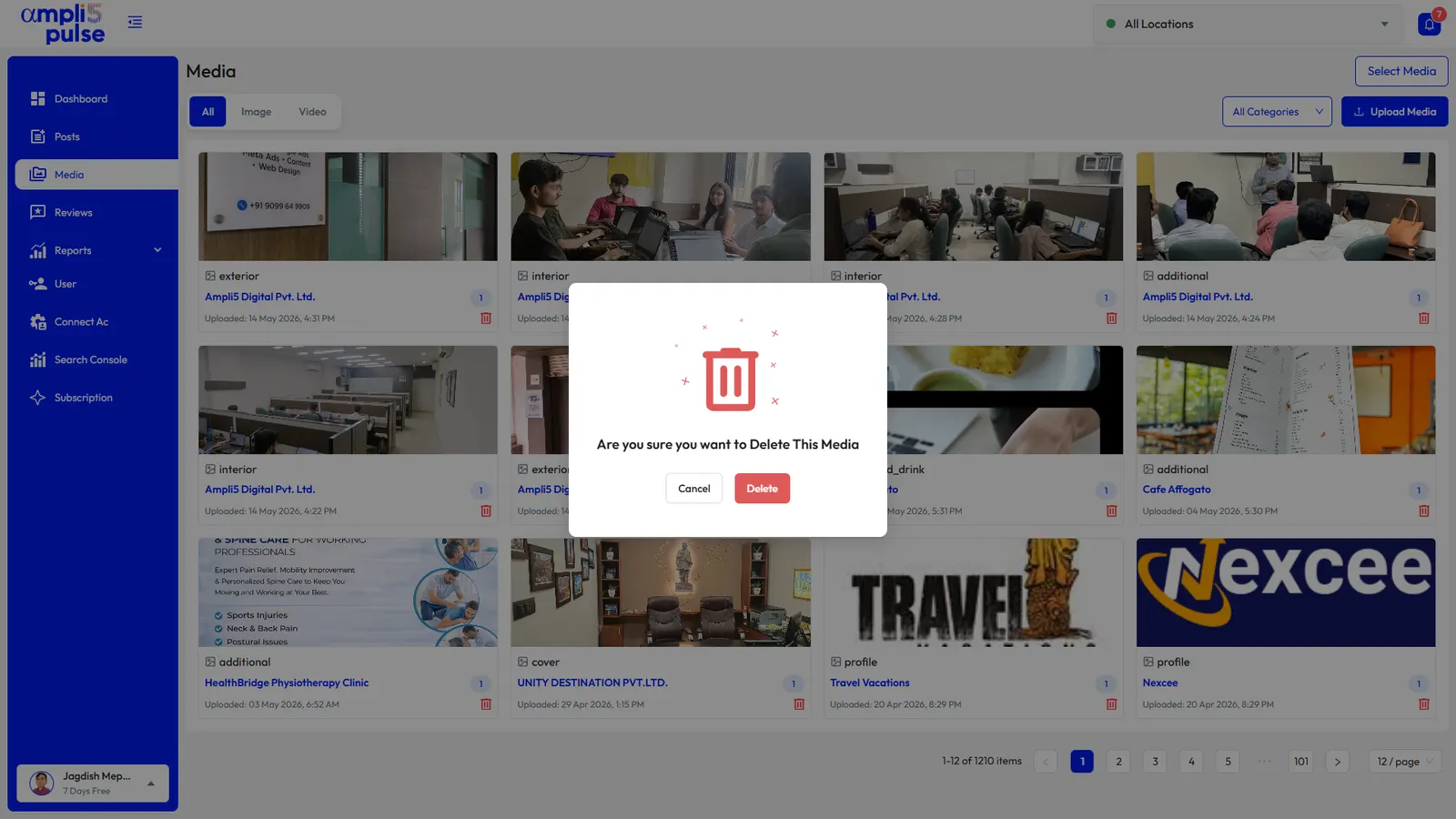
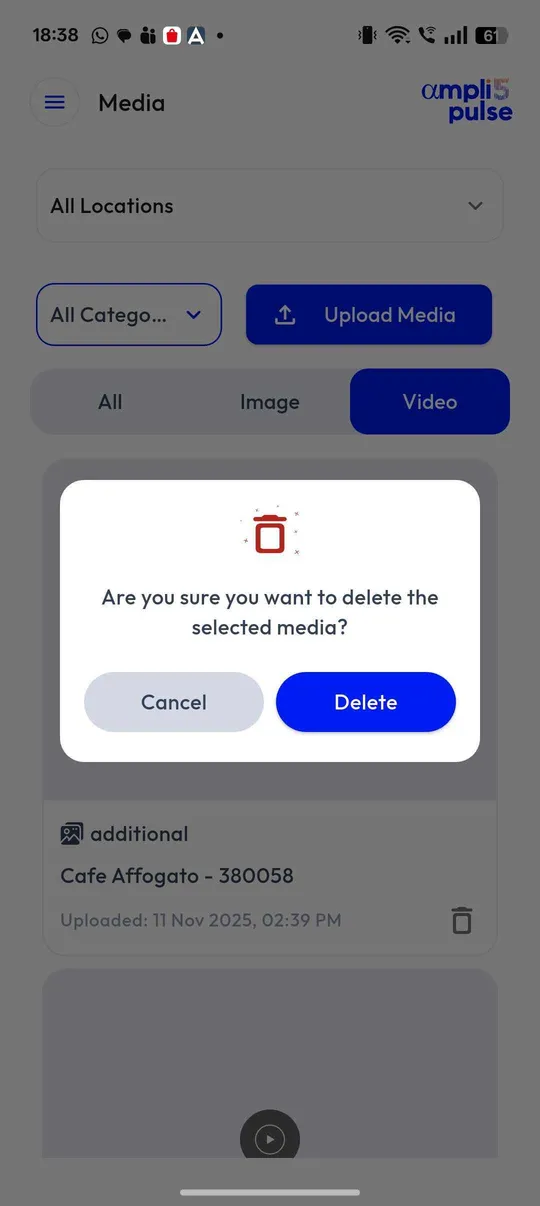
Choose the bin icon or the delete option in the photo's menu, then confirm.
It can take a little while for a deleted photo to disappear everywhere on Google Search and Google Maps, so don't worry if you still see it for a short time.
How to remove photos from Google Business that customers added
Owners can't delete customer photos, and Google doesn't let you switch off customer uploads. What you can do is report a photo that breaks Google's rules for content on Maps. You don't need the owner account to report it; any signed-in Google account can.
Find the photo
Open your business on Google Maps or Google Search and browse the photos, looking at those added by customers.
Open the report option
Select the flag icon or the photo's three-dot menu and choose to report it.
Choose the right reason
Pick the reason that matches the problem, such as unrelated to the place, inappropriate, a privacy concern or a legal issue.
Submit and check back
Google reviews the report. There's no fixed timescale, so check back after a few days.
For legal problems, such as a photo that infringes your copyright or reveals someone's personal information, Google also accepts legal removal requests through its Help Centre. Choose the reason that genuinely fits, because Google judges the photo against that policy.
What Google will and won't remove
Google removes customer photos that break its policies for content people contribute to Maps. It doesn't remove a photo just because the owner dislikes it.
| Usually removed if reported | Usually stays |
|---|---|
| A photo of a different business or place | An accurate photo that isn't flattering |
| Sexually explicit, violent or offensive content | A messy table or a busy, crowded room |
| Personal information, such as a visible document | An older photo taken before a refurbishment |
| Adverts, spam or promotion for another business | A blurry or badly lit but genuine photo |
| Content that infringes someone's copyright | A photo of a dish or product the customer didn't like |
When a genuine but poor photo stays, the practical answer is to add better photos of your own: a bright exterior, a tidy interior, your team at work and your best products. That gives Google stronger images to choose from. You can't reply to a photo the way you can to a review, so good photos are your answer. If the same customer has also left a review, our guide to removing Google reviews explains what Google will and won't take down.
How to delete a photo from your Google account
If you searched 'how to delete a photo from Google account', you may not mean your business at all. There are three common cases, and none of them is handled from your Business Profile.
A photo in Google Photos
Open the Google Photos app or photos.google.com, select the photo and choose the bin (delete) icon. It moves to the Bin, where backed-up items are kept for 30 days before being deleted for good; empty the Bin if you want it gone sooner. Deleting a backed-up photo removes it from every device synced to that account.
Your Google Account profile picture
Open your Google Account (tap your photo in Gmail or another Google app and choose to manage your account), go to Personal info, select Profile picture and choose to remove or change it.
A photo you posted on Google Maps
In the Google Maps app, tap your profile picture and open your profile or 'Your contributions', then go to Photos. Open the photo, use its three-dot menu and delete it. This removes it from the place's profile as well.
Keep your profile photos tidy after a clean-up
A one-off clean-up helps, but photos drift out of date again. Run through this list every few months, or after any change to your premises or branding. It fits naturally into a wider Business Profile update.
- The logo and cover photo match your current branding.
- Exterior photos show the current signage and entrance.
- Interior photos were taken after your last refurbishment.
- Product, menu and price-related photos are still accurate.
- None of your own uploads show a previous business at your address.
- New customer photos have been checked, and any that break the rules have been reported.
Sources: Google Business Profile Help: Manage your Business Profile photos & videos; Google Business Profile Help: Report inappropriate photos or videos on your Business Profile; Google Photos Help: Delete photos & videos; Google Legal Help: Report Content for Legal Reasons.