

 Updated October 2026
 In short
- Edit the number under 'Edit profile' in the contact section, in Google Search, the Maps app or Business Profile Manager.
- Use a number your business answers, ideally a local one, as the primary number.
- You can usually add up to two additional numbers alongside the primary one.
- Update your website, directories and Google Ads call assets so every listing shows the same number.
How to change business phone number on Google Search
Start with the correct Google Account and a clear view of which business or location is involved. Platform interfaces can change, so use Google’s current Help instructions for sensitive account, policy or verification decisions.
Find your profile
Sign in and search for your business name, or 'my business', in Google Search.
Open 'Edit profile'
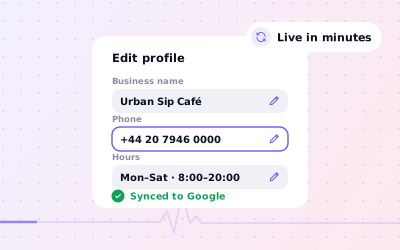
Select 'Edit profile' in the management panel above your listing.
Go to the contact details
Choose the contact section, where the phone number and website sit.
Replace the number
Delete the old number and type the new one with its area code. Adding the country code, such as +44 or +91, avoids confusion.
Save
Select 'Save'. The new number may show as under review for a short time before it goes live.
How to change the phone number on Google Business in the Maps app
Open your Business Profile
In the Google Maps app, tap your profile picture and open your Business Profile.
Tap 'Edit profile'
Then open the contact section.
Update and save
Change the phone number and tap 'Save'.
Menu names in the app change more often than on the web. If you can't find the option, search for your business in the Google app or a mobile browser instead; the same 'Edit profile' button appears there. Our hub on how to change your business information on Google covers every route.
Phone number rules worth knowing
Google's guidelines expect the number on your profile to reach your business directly. A few practical rules follow from that:
| Question | Short answer |
|---|---|
| How many numbers can I add? | One primary number, plus up to two additional numbers |
| Mobile or landline? | Either, as long as your business answers it |
| Central call centre number? | Use a local number for each location wherever possible |
| Premium-rate or redirecting numbers? | Avoid them; they can mislead customers and break the guidelines |
| Call-tracking number? | Commonly used as the primary number, with the main number as an additional one |
| Different numbers per location? | Yes, each location should show the number that reaches that branch |
How to change phone numbers in Google Business for many locations
When a group moves to a new phone system, numbers often change at every branch at once. In Business Profile Manager you can edit each location, or update 10 or more locations together with a spreadsheet. Make sure each branch shows its own number rather than the head office line, unless calls genuinely go to one central team.
Why your new phone number isn't showing
- It's still under review. Give it a day or two. Submitting the same edit again doesn't speed it up.
- Google changed it back. Google sometimes updates details from your website, directories or customer suggestions. Review any updates from Google in your profile and correct the source of the old number.
- The edit was rejected. A number that appears to belong to another business, or a premium-rate number, may not be accepted.
- You edited a different profile. If you manage several profiles, check you changed the right location.
- The profile needs verification or is restricted. Edits on an unverified or suspended profile aren't published. See our guide to a suspended Google Business Profile.
Update the number everywhere else
Customers and search engines see your number in many places. Once Google shows the new one, update the rest so nobody rings a dead line:
- Your website header, footer and contact page, plus any structured data on the site
- Google Ads call assets, which are set separately inside Google Ads
- Bing Places, Apple Business Connect and directories such as Yell in the UK or Justdial and IndiaMART in India
- Social profiles, booking platforms and delivery apps
- Email signatures, invoices, vehicles, signage and printed materials
Consistent details help customers reach you and help search engines trust that your information is current. For a full check of your profile, see our Google Business Profile optimisation guide.
Sources: Google Business Profile Help: Edit your Business Profile; Google Business Profile Help: Guidelines for representing your business on Google; Google Business Profile Help: Import and update Business Profiles in bulk.